Once your email has been finalized, all you have to do is export it from the Email Builder to import it into your routing email tool (Email Services Provider).

Exporting an email
To export your email, click on the  (Export) icon accessible from the validation workflow pane.
For more information about the validation workflow pane, see The structure of the Designer.
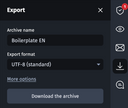
An “Export” pane is displayed. It includes the following customization options:
- Archive name: Allows you to rename the archive (by default it inherits the name of the email).
- Export format: Allows you to choose between three export formats (UTF-8, ISO-8859-5, ISO-8859-15).
- More options: Allows you to customize export options (encode special characters, split sections in different files).
- “Download the archive” button: Allows you to generate the archive.
For more information on automating email exports, please refer to the documentation on API access.
Available export formats
The Email Builder offers three encoding formats for email export:
- UTF-8 (standard): Includes virtually all characters in all languages.
- ISO-8859-5 (Latin/Cyrillic): Allows you to represent the characters of the Cyrillic alphabet.
- ISO-8859-15 (Latin): Supports characters specific to certain European languages, but it remains limited to Latin characters.
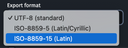
To find out the correct format to export, please refer to the documentation of your routing email tool.
Customizing the export of an email
To customize email export options, click on “More options” in the export pane. Depending on your needs you can:
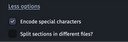
- Export an email without encoding special characters (“é” to “&eac;”, “à” to “à”, etc.) by unchecking the “Encode special characters” box.
- Export email sections by checking the “Split sections in different files” box.
The downloaded archive will contain a “sections” folder including as many HTML files as sections present in the email, as well as a “skeleton.html” file which corresponds to the CSS of the email.
This export will allow you to isolate each block into a separate HTML file, which you can then reuse in your routing email tool as a dynamic block (for example, an Adobe include). Be sure to check with your routing email tool to test and understand the benefits of this method for customizing your emails.
Contents of the downloaded archive
An email is exported as a zipped folder containing the following elements:
- “images” folder: All media used in the email, not previously hosted in an external solution.
- mail.txt: The text version of the email.
- mail.dev.html: Detailed version of the HTML code, including comments.
- mail.html: Minified version of the HTML code.
- report.txt: Export report indicating the email name, export date and the name of the user initiating the action.
- preview.png: An image capture of the entire email in desktop version.
Best practice: When importing an email into your routing email tool, make sure to use the minified HTML code (mail.html file) whose weight has been particularly optimized.
For more information about the images and the media not previously hosted in an external solution, see Using and optimizing images.