
The “Smart Content” tab in the left area of the Designer offers various tools powered by an AI assistant for analyzing and adjusting the tone of your emails, translating them, and fixing the spelling and grammar.
Smart content
These functions are only available if the email concerned contains text. With the exception of the “Analyze” function, the email is updated incrementally, and you can watch as the assistant performs its task step by step.
All changes the assistant makes can be undone using the “Undo” button on the top bar of the composition area.

If the “Smart Content” tab is missing or deactivated in the Email Builder, please contact support if you wish to have the AI assistant enabled.
Analyzing and improving the tone

The “Analyze” function allows you to quickly assess the tone of an email. Especially when combined with the Rewrite function, the AI assistant supports you with aligning an email’s tone of voice with your communication goals and your audience.
After clicking the “Analyze” button, a popup message box with a “Cancel” button appears, and the Designer is locked until the result is available.
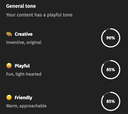
The analysis result states the dominant aspect of the tone of the email, and indicates its key characteristics using emojis, a strength level in percent, and mood-related keywords.
Based on the result, you can now
- adapt the tone to your audience as needed,
- make your message more impactful,
- and ensure consistency across your communications.
Note that after modifying an email, it needs to be saved to be able to analyze the text again.
Translating email content
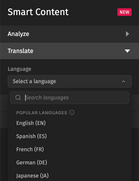
The AI assistant’s “Translate” function supports more than 40 target languages. Here’s how to proceed:
- Open the language list.
- find the desired target language using the search field, or by browsing the list,
- select the target language,
- click the “Apply” button at the bottom of the tab.
A popup box with a progress bar and a message indicating the task being performed appears.
Once completed, you can of course finalize the translated content as needed, adjust its tone using the Rewrite function, or simply continue composing the email.
Rewriting an email
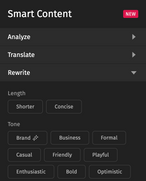
The AI assistant’s “Rewrite” function allows you to quickly adjust the content of an email in terms of tone and length to align your message with your audience, your objective, or your brand voice.
Length and tone
The “Length” option “Shorter” reduces the length of the email while preserving key information, whereas “Concise” makes your message clearer and more direct.
The “Tone” options, e.g., “Formal“, “Enthusiastic”, or “Professional” are for adjusting the tone of your message towards a specific communication style:
- Select one of the options by clicking the corresponding button, then
- click “Apply” at the bottom of the tab.
- A message box with a progress bar appears, and the email content is updated.
The “Rewrite” function reformulates the content of the email while preserving its original intent.
The “Brand” tone
This option automatically adjusts the email content along the “Description” provided for your brand tone of voice in Home.
Specifically, your message is adapted based on your editorial identity, allowing you to communicate with more confidence through a consistent tone reflecting your brand across all your emails.
Creating variations
You can adapt your message to other audiences by creating variations of it, e.g., a more formal version for corporate communication, a more enthusiastic version for a marketing audience, a more urgent version for a promotional campaign, etc.
Correcting spelling and grammar
This function automatically corrects spelling, grammar, and punctuation mistakes.

Flawless spelling and grammar is essential for emails to convey the intended message without disrupting the recipients’ reading flow by distracting or even annoying them.