The Email Builder provides you with several options to manage your tracking, especially if you need to integrate the same tracking settings for all links within an email.

Managing tracking
Adding a tracked link to an element
The classic method is to integrate a tracked link directly into a clickable element. For more information about including links in an email, see Adding links to an email.
This way, you can customize every link of every clickable element of the email. However, this approach can sometimes be time-consuming and error-prone. Therefore, several global tracking options are available to automate some of these actions.
Using global tracking options
The global tracking options allow you to apply tracking settings to all links present in your email. This can be particularly useful when, for example, you need to add the same UTM settings to all your links.
These options accept variables from your email service provider, so you can easily integrate dynamic tracking.
1. URL prefix and suffix
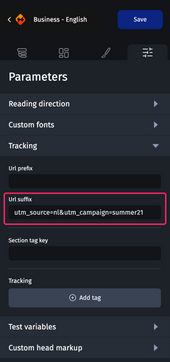
Available in the “Parameters” tab of the design pane from the “Tracking” category, the “URL Prefix” and “URL Suffix” options allow you to automatically inject a string of characters before or after each link present in an email. For example, if you need to add the following UTM parameters to all of your links:
utm_source=nl&utm_campaign=summer21
You can enter this string in the “URL Suffix” field. In this way, when you generate a mirror link, send a test email or export the ZIP archive, all the links in your email will have these UTM parameters.
2. Section tag key
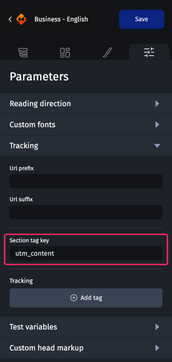
Available in the “Parameters” tab of the design pane from the “Tracking” category, the “Section tag key” option allows you to inject into your links a specific tracking parameter to each section of your email.
This option is particularly useful if, for example, you would like to know from which section your email's recipients clicked to reach your website.
First of all, define the tracking parameter that will be used in your links. To do this, simply enter this parameter in the “Section tag key” field, for example utm_content.
Next, make sure that each of your sections is named with the value that you would like to retrieve in your tracking tool. To do this, access the “Structure” tab of the design pane and fill in the different values for each section.
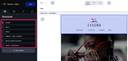
In this way, all links in your header will be injected with the tracking parameter utm_content=header, in the following section utm_content=main_content, and so on.
3. Tracking tags
Available in the “Parameters” tab of the design pane from the “Tracking” category, the “Tracking tags” option lets you add as many tracking parameters as desired. These tracking parameters will then be automatically injected into all the links present in your email.
For example, if you need to add the following UTM parameters to all your links:
utm_source=nl&utm_campaign=summer21
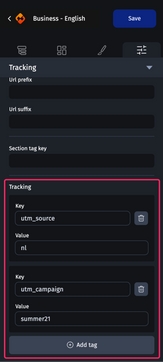
Simply click on the “Add tag” button, then enter the key utm_source and the value nl, and repeat the same action for utm_campaign and summer21.
Excluding a link from global tracking
The “Exclude from tracking” option allows you to not apply the tracking set in your email settings. This feature is particularly useful for links like those in the online version of the email or for unsubscribing.
To use this option, simply select the clickable element you would like to exclude from global tracking, then access the “Link” category in the “Styles” tab from the design pane, and finally check the option “Exclude from tracking”.