From the design to the finalization of an email, you can view its rendering at any time in your web browser.

Using the mirror link
Thanks to the mirror link, you can view the email in a wide range of device formats allowing you to validate the technical and aesthetic aspects before exporting it for routing.
Accessing the mirror link
The mirror link is available from the validation workflow pane via the “eye” icon. Once your email has been saved, here are the steps to access the mirror link:
Step 1: Click on the mirror link icon present in the validation workflow pane.
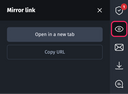
For more information about the validation workflow pane, see The structure of the Designer.
Step 2: Click on the “Open in new tab” button.
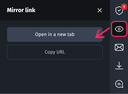
Step 3: A new tab will then open in your browser, allowing you to preview the email in different screen sizes.

You can also “Copy URL” of the mirror link to share it with stakeholders, even if they do not have an Email Builder license. This will allow them to have the same preview as a user with an Email Builder license.
This mirror link is not intended to be exported.
Navigating via the mirror link
In the new tab that appears, you can navigate between different screen sizes to check the rendering of the email, particularly its responsiveness.
Click between each gray separator to select one of the 10 screen sizes (from desktop to the smallest smartphone) available in this preview.


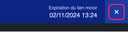
If the Email Builder header bothers you in the preview, you can close it by clicking on the cross on the right. However, you will no longer be able to navigate between the available screen sizes.
When does the mirror link expire?
The mirror link is valid for 72 hours from the time it is generated. The expiry date and time are indicated in the right-hand side of the header.
The difference between mirror link and live preview
Unlike the Live Preview feature which allows you to instantly view your email changes made in the designer, the mirror link generates a preview of the email at a given time.
If changes are made to the email in the designer, it will be necessary to generate a new mirror link.
For more information about the Live preview feature, see Using the Live Preview.