For all non-template administrators (end users such as secretariat, accounting, etc.), a simplified template management view can be opened from the Backoffice/Templates menu or directly from a template link.

Simplified correspondence template management

Admin: Non-template administrators do not have administrator permissions (no cubes administrator, thus no administrator flag) and do not have the "Template and report administrators" profile. Only under this condition, end users have the simplified template administration available.
It contains only correspondence templates and offers the following options:
- Find templates easily (tree or list view, search, quick filters)
- View templates (with type-dependent presentation)
- Copy and delete templates (if access allows this)
- Classify templates
- Set access for oneself or for the department
- Mark templates as favorites

Attention: Please never modify the original template, but always create a copy for your correspondences. Be careful not to change the template’s fields or placeholders initially, and it is best to edit only text modules. It is important not to accidentally change the syntax in the template. Specially trained report developers are responsible for creating complex templates for your company.
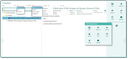
Simplified correspondence template management for end users (Non-template administrators)
If you as an end user have permission to access a template, you can edit it in the template management. If, for example, you have already saved a template from an email (CRM-based HTM template only):
- Open the template from the hyperlink field, e.g. at an email, or search for the template directly in the template management (menu Sales/Backoffice/Templates) using quick filters, or by its name.
- Select the template in the tree and check its text structure on the right.
- If necessary, click Copy in the function bar to create your own copy of the template. Attention! It is recommended that you rename the template right away, otherwise it may be difficult to find it again after saving!
- Maintain the classification attributes and set Access only for me if necessary, so that you can continue to edit the copy.
- Save as desired.
Note: If the Access only for me flag is not set here in the simplified template form, then the creator's department is granted read access. In case of "Access only for me", the access string is formed again (D, D43, D49), depending on the PSA_RPT_DEF_USR_ACC variable. If a non-owner wants to change the flag, a message appears.
If the template is to be used across departments, you can set this via the record access (lock).
Admin: The administrator maintains the selectable classification attributes under .../Reports as "Template Scopes".
Edit the copy
- Find the copy on the left in the search box, select it and click Edit in the function bar.
For working with the HTML-Editor, see "Operation". Click OK in the editor to save the changes. - If necessary, check the classification attributes (Scope, Topic) and the access once again.
See also: Quick info for the simplified correspondence template (PDF).