Template assistant – WINDWARD

Template assistant to the generation of data handing over string in templates

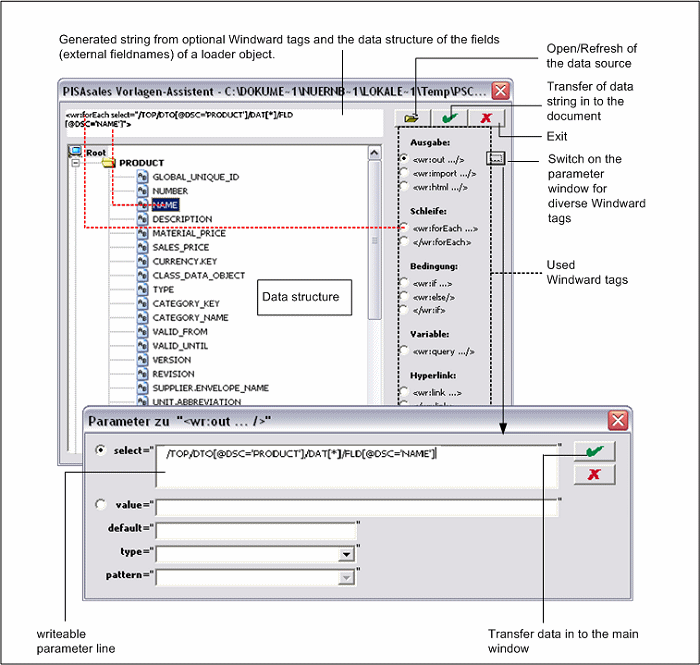
The template assistant  of the JustRelate CRM offers users and developers extensive possibilities to develop and adapt tem­plates. This assistant enables you to interactively create data transfer strings for the Windward report engine, and to transfer them to the template. Windward tags can be defined, additional parameters can be specified and node elements (data) can be selected from an explorer (structure tree), from which the wizard automatically generates a path string and inserts it into the template at the current cursor position. The most important Windward tags are provided as options in the assistant. If an option is selected, further parameters can be added in addition to this tag, and automatically be applied to the template.

For the template wizard to be made available for template editing, the template must be opened using the "Edit" but­ton. You will then see in the Word Ribbon under "Addins" the custom toolbar with the buttons "Insert Tag" and "Check tags".
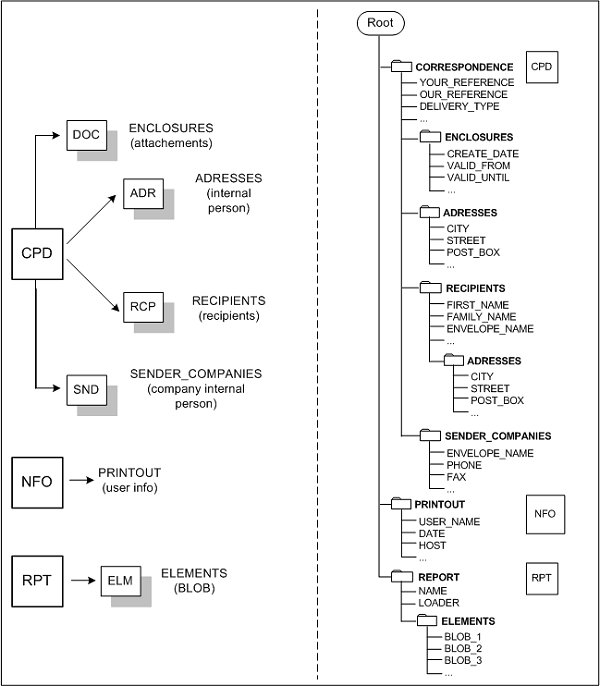
Explorer display of the data structure

Exemplary date structure of a correspondence template

By clicking "Insert Tag", the Template Wizard opens. On the left-hand side, a tree structure of the XML Loader can bee seen that later provides the data for your report. Starting from the root, you can navigate the nodes across the whole structure. You can open substructures by clicking the plus sign, and select files and data fields with a simple click.

The symbols indicate the respective nodes:

  • Folder symbol: "Data class"
  • Record symbol: "Record"
  • Text symbol: "Data field"
  • BLOB symbol: "File"

The data structure always follows the same rules. The respective dialog object (form / list) is displayed as a data class with subclasses.

You can find the Printout and Report nodes in all templates. They are standard specifications that can be used in every template.

Printout

Shows the data of the logged-in user and the current date.

Report

Shows the report name and the used loader object.

Subnodes report / element

Displays all BLOBs that are present in the dialog object (form / list) (usually images, logos).

You can find all data classes in use, as well as the accompanying fields, as external names in the assistant.

Using the assistant

The template assistant generates from a used Windward tag and its parameters as well as the selected data structure element a complete string that is inserted into the sample template at exactly the cursor position.

  1. Open a template from the template management using the Process function in Microsoft Word.
  2. Place the cursor at the position in the template where the data should be displayed in the printout.
  3. In the Word top menu, click the "Add-Ins" tab. In the custom toolbar, click "Insert Tag". This opens a window for inserting a new tag.
  4. Select an XML node on the left.
  5. Select one of the Windward functions on the right-hand side (tag type).
  6. If necessary, click the button next to the tag type to open the parameter window for this tag.
  7. Enter the parameters required for the tag.
  8. Click the green check mark to apply the parameters to the main assistant window.
  9. Click the green check mark to apply the tag to the cursor position.
  10. Click the red cross to cancel where needed. Then the current window is closed without any modifications.

As a result, the generated string should have been placed at the cursor position in the sample template.