The names of the element and configuration dialogs can be found in the Administration/Tools/Cockpit/Cockpit elements administration table. Elements can be extended and added through customizing. The user can then select these elements in the cockpit configuration.

Managing cockpit elements
Note: Creating elements requires knowledge of the data model.
The base class of cockpit elements is PsaCcpDiaSciApp.
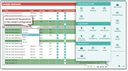
List of preconfigured cockpit elements
Standard cockpits
JustRelate CRM delivers standard cockpits that are already preconfigured for several target groups:
- Sales
- Marketing
- Service
- Standard
You can assign these standard cockpits to any user. In the function bar of the cockpit elements, you can find the corresponding functions for this. A click on it opens the selection dialog where the person concerned can be selected.
If no cockpit is configured for a user, they automatically receive the default configuration according to their profile assignment. If the user has several profiles, the profile with the lowest position number wins.

Attention: Access to cockpit elements is taken into account. Access to filters at watch lists is not checked. This can lead to diverging results when assigning elements. Please make sure that the required drill-downs or filters are accessible to the staff member concerned, if applicable. Otherwise, they may receive empty cockpit elements.
Functions: Copy elements
You can duplicate cockpit elements in the list for the cockpit configuration (tree). This assigns the data basis for a cockpit item, and it is also made available in the selection tree in the cockpit configuration.
Note: Before you duplicate an element, you need to know the object (dialog) for which it is needed (assignment of the data basis). Therefore, always open the corresponding form before you duplicate it (for example, contact, activity, process, etc.). The form does not require a record to be loaded.
- For the data basis, open the form for which an item is to be copied (company, for example).
- Switch to the Cockpit elements administrator list, and select from the function bar More functions/Copy element, and then an element, e.g., Filter Bar Chart.
- Select the corresponding dialog from the dialog list and click OK.
- If necessary, adjust the copied element (title) in the admin list to be able to find it in the selection tree of the cockpit configuration.
- Switch to the cockpit and check in the cockpit configuration if the copied element can be found at the correct position of the structure tree.
- If necessary, you can subsequently correct the position in the structure tree of the cockpit configuration using the Type field of the administrator list. This does not change the assigned data basis (dialog).
Cockpit element types
When you configure your cockpit, the cockpit elements can be selected from a tree. For managing them, and for a better overview, cockpit element types with subtypes are grouped in the Cockpit element types administrator list.
In the list of the preconfigured cockpit elements, these types (Activities, Contacts, Sales etc.) and their subtypes are assigned to the elements to be grouped accordingly.
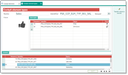
Cockpit element types
If cockpit elements are created through customizing, their type and subtype can be managed here. Please pay attention to the access and the purpose for which the elements were created (Sales, Activities, Service etc.)
Action-Panel – providing further functions
The following steps can be used to provide additional functions for the Action Panel cockpit element:
- Extend the
en.pisa.psa.dto.psa_apn.PsaApnFncItfclass, and add it to the Administration/Tools/Cockpit/Action-panel list. - Implement the desired function.
- Enter the static function parameters required by the function. Usually, the parameters specify the object to be created as well as the fields, titles and functions of the form for capturing the data.
- Using the "Selected" flag and/or "Access", you can control the availability of the function buttons.
- "Name" and "Image" specify the function button.