Using the cockpit distribution tools, you as an administrator can copy, insert, replace or delete entire cockpits, individual cockpit pages or elements, or assign them to different users.

Cockpit distribution
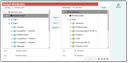
Cockpit distribution
Note: The dimensions of the cockpit elements are only taken account of when transferring a cockpit page or an entire cockpit. When transferring individual elements, the elements in the target cockpit must be checked and adapted.
Open Administration/Tools/Cockpit/Distribute cockpit to start distributing items.
Using the Source pull-down menu to the left, select a standard or a user cockpit.
The Destination pull-down menu to the right lets you select an internal contact as the destination. This causes the configured cockpits of one or several users to be displayed, depending on whether a staff member, a division, or a team is selected.
The trees represent the structure of the selected cockpits. They always include the standard and the company cockpits with their respective pages and elements.

Admin: Using the PSA_CCP_STD_NAM_MAP variable, standard cockpits can be made available as a source by additionally specifying (e.g. client-specific) UICs. They additionally appear in the source selection menu. The format is UIC:=variable by means of which the title to be displayed in the source selection menu can be set. If the variable is not defined (UIC:=$NONE), the entry in the "Save as" field of the internal person is used.
Note: The internal users 1100 (Sales), 1102 (Service), 1101 (Marketing) and 1103 (Standard) are used to define the standard cockpits. In the same way, other internal users can be used as the source of client-specific standard cockpits.
After selecting the source and the destination, you have the following possibilities:
- Copy a cockpit, a page or a cockpit element to the selected destination.
- Insert a cockpit, a page or a cockpit element into a free slot in the cockpits of the destination users.
- Replace a cockpit, a page or a cockpit element on identical positions in the cockpits of the destination users. If needed, the present destination elements are deleted.
- Delete a user’s cockpit elements.
After copying, inserting, and replacing, new elements are presented in color in the destination cockpits. The elements are highlighted until a new copy is made, or a new contact is selected.
Consideration of access
All access to cockpit elements is taken into consideration. When transferring a cockpit from an existing user, the system queries whether the target user should be granted any missing execution and access permissions. These can be granted via dialog if required.
In case of missing permissions (also missing read permission of target users for a filter used in a source cockpit element), a message window appears for applying the selection (Yes / No) to individual elements or, if needed (checkbox), to all further objects.
So, if the distribution process is cancelled due to missing permissions, the distribution can alternatively be done on a page-by-page or element-by-element basis.
Tip: If the elements whose distribution will fail are known beforehand (usually with "No" in the message bar after a pass), you can also skip them or selectively grant permissions by responding "No" to the query.
Be aware that only the user administrator (salesadmin) and the contact administrator can distribute cockpits and grant permissions for them.
To prevent certain user groups from using this feature incorrectly and accidentally deleting complete cockpits or destroying compressed data, "Document-only administrators" and "Mobile-only administrators" (group 59) can no longer distribute cockpits from the CRM version 8.0 (method access of "Distribute cockpit" is "X43,X45").
Note: Access to filters is not checked with watchlists. This can cause divergent results while distributing.
Please also note that each user has their own cockpit definition which is not changed, even by an upgrade. If a cockpit was initially copied from another user, then one uses their filters and drill-down definitions, among other things. In this case, the filters should be changed before distribution so that the search conditions in the source cockpit dynamically depend on the logged-in user.
Adjustment using variables
The default values for the configuration dialogs and the queries for the individual cockpit elements are read from server variables named PSA_CCP_.... The administrator can view them in the Preferences administration table, and adapt them as needed.
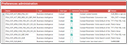
Cockpit variable list
For every element, two variables are evaluated:
PSA_CCP_..._DEF_PARspecifies the default values for the configuration dialog.PSA_CCP_..._QUEspecifies the query condition.
You can adapt both variables. For this, copy the variable of the desired cockpit element globally (group = 0) or user/group specifically. When adapting the variable, you can orientate yourself on the entries already available. This way, you can easily modify, e.g., periods of time, statuses, and object identifiers in the query condition.

Attention: The settings of the cockpit variables only take effect when the respective element is used for the first time. After that, the default configuration is stored on a per-user basis. Newly changed default settings via variables must then be updated by deleting and redistributing the cockpit element.
See also: The JustRelate CRM Cockpit
Example
Adapting the query condition of the "Submitted quotes" cockpit element:
Standard:
- PSA_CCP_QUO_PEN_SCI_DEF_PAR = " TIT: = Submitted quotes in the current month FLD: = YEL: = GRN: = MAX: = "
- PSA_CCP_QUO_PEN_SCI_QUE = "QUO_DAT : = MONTH_QUERY PSA_OPR.OPN : = OPN"
Adaptation:
- PSA_CCP_QUO_PEN_SCI_DEF_PAR = " TIT: = Submitted quotes in the current week FLD: = YEL: = GRN: = MAX: = "
- PSA_CCP_QUO_PEN_SCI_QUE = "QUO_DAT : = WEEK_QUERY PSA_OPR.OPN : = OPN"