Central address maintenance

You can maintain the addresses of all contacts of your company using the Administration/Addresses/Standard list menu.

Usually, an account manager is primarily responsible for the correctness of a contact’s correspondence address. However, the CRM enables you with this list to check and maintain uniform spelling conventions for addresses throughout your organization. Often it is a matter of misspelled street names or incorrect postal codes in contact management, which you can consolidate in this list by selecting incorrect addresses, or fragments of them, from the Addresses list using search criteria, and then correcting the faulty data.

For several incorrect addresses found, you can also use the command in the Administration/Extras/Tools/Transfer contents menu.

Attention

Attention: All addresses appearing in the list are assigned to a record, and a con­tact can have several addresses. If you delete an address in the list, the contact concerned no longer has this address in the contact management.

Eliminate multiple assignments of an address

Copies multi-assigned addresses and adjusts the key fields.

If one and the same address record (with the same GID) has been assigned more than once to the same contact or different ones, for example through an import, then a faulty condition exists. This function removes this error by copying and reassigning the address as often as needed, so that every address record is then used only once.

Address types

The list of the address types (Administration/Contacts/Addresses/Address types) shows only the cus­tomized address types that are used in contact management. An administrator cannot modify or add address types here.

Address check

If a ZIP code database is available, incorrect entries within Germany can be subsequently checked and corrected using the address check, similar to address maintenance.

  • Open the address check in the Administration/Contacts/Addresses/Address check - contacts (pro­jects) menu. Find and select individual addresses, and check them using the Check selec­tion function.
  • Mark the incorrect entry and try to correct it with the help of the proposed functions. The ZIP code data­base supports you with proposals or automatic entries.

Creating a ZIP code database

The ZIP code Database Germany containing the raw data (Deutsche Post DATAFACTORS Streetcode) needs to be acquired and made available on the server. In the Administration/Contacts/Addresses/Address check...  list, the ZIP code database function opens a dialog that lets you create a database that conforms to the system.

The database and source data paths must be specified in the server properties and must exist. Please add two keys to the property file:

psa.zip.db.pth

This entry informs the CRM about the name of the folder in which the database can be found. It should be a relative path. When the ZIP database is installed for the first time, this path must not exist and is generated automati­cally when the server is started. The relative entry in the property file then reads psa.zip.db.pth = .. / ZipDb.

psa.zip.db.fil

This specifies the name of the raw data file. This second parameter is only needed if the database is to be created again, e.g. after a new version of the database has been released. Example:  .../misc/B1802032.DAT

Afterwards, the server needs to be restarted, which creates the directory defined in pth.

If the database has been created for the first time or a new version of the postal code database is imported, then the Create function in the admin dialog needs to be used to create a database from the raw data of the ZIP CD that the CRM can use in contact management.

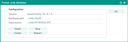
In the Postalcode codes database dialog, you can use Check to verify that the database is connected cor­rectly.

Configuration of the Postal code database

Note: The database mentioned contains only German addresses. Regarding the address check, you may want to consider changing the standard setting of the PSA_SFR_CHK_ADR environment variable.

See also: My Data, Configuration function bar, My Environments function.

Tip: A generated database (e.g., in cluster mode) can be copied to another cluster node.

  • On the other cluster, only the entry for psa.zip.db.pth is necessary.
  • Execute "Stop" in the dialog of the target node.
  • Copy the folder.
  • Execute "Create" on the target node of the cluster.
  • If needed, execute "Check" on the target node.

Web service for Geo integration

As an alternative to the postal code database, the CRM has a web service interface.

See also: Contacts, Entering international addresses, Automatic address check using database or web service