In document sublists (tabs), the function Create folder is available as an icon button. It creates either a folder in the first level, or a sub folder in the selected or marked folder. The folder name and the level information (flag) are queried via a dialog.

Folder structures in the document tab
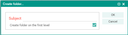
Creation of a folder
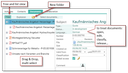
Creating, displaying and editing folder structures
Via a hyperlink, the folder can be opened in the master administration and also be processed further there (creation of subfolders, document assignment).
The document structure can be displayed as a list or tree.
- List representation: Shows all folders and documents of the uppermost level. Further levels can be opened using hyperlinks.
- Tree representation: Folders and documents are displayed as in the Windows explorer.
In the tree view, you can easily reassign folders and documents using drag-and-drop. This means that, for example, quote documents generated by the system, which are automatically assigned directly to the quote, can be quickly moved to the appropriate folders.
Behavior in the tree view
Folder and document names don’t have a hyperlink in the tree. The corresponding master form can be opened through the hyperlink in the Subject field in the subform to the right. Folders and documents can be selected easier and faster and be rearranged using drag and drop. In this process, you are supported by an assistant.
Note: Several documents can be selected either on the first level or on a level below a node. You cannot select, e.g., a folder and one or more documents in the folder at the same time.
The Explosion button in the tree view displays all structure levels at the same time. You can only search for documents and folders in the list view.
Behavior in the list view
In the list view of the document relation, the Explosion On/Off option is offered. On displays all documents of the structure level and allows, e.g., searching for documents within the structure.
The cross-structure views offered in the list (e.g., in the company, the Company, Projects view) show all folders and documents that are assigned to the named objects (e.g., all folders in the company and all folders in cases of the company). If there are folders of the same name, they are displayed several times.
The documents are sorted in the tree view and in the list view (current first), and the folders are sorted alphabetically at the top in ascending order by name.
Sort order
The sort order in tree and list is descending by document Number, descending by Version, ascending by Subject. The documents are thus sorted (current first), and the folders are sorted alphabetically at the top in ascending order by name.