
There are some mailing-related settings you can access after finding the mailing concerned and clicking “Edit” on its details page.
Specifying a Mailing’s Details
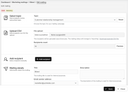
List details
At the very top of the details page, you can add recipients to the mailing by specifying a topic, uploading a CSV file, or adding a recipient idividually. Specifying a topic for a mailing causes the profiles having consented to receiving emails on this topic to be added to the recipient list of this mailing.
Mailing details
The “Mailing details” section lets you edit the mailing’s title and description, among other things. The title is used as the mailing’s display title in the overview list, while the description can help you and other users recall a mailing’s purpose.
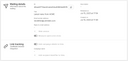
The addresses offered in the Email sender address dropdown list are subject to configuration. If you would like to change the sender addresses listed here, please contact our customer support at support@justrelate.com or via our contact form. Pay special attention to the sender address selected because it will show up as the “From” part in the emails sent.
You can specify the Reply-to email address to prevent replies from being sent to the email sender address.
Activate the Web version switch if you would like to make a web-browser-based version of the mailing available to its recipients. If you do, you can then insert a link pointing to the web version into your mailing template. As the emails are finally generated and sent, Automations inserts a URL as the link target that is unique for each recipient and the mailing in question.
Activate Measure opens and clicks if you want Automations to provide the corresponding statistics.
Link tracking lets you integrate JustRelate etracker to personalize links and measure how they contribute to a campaigns success.
Template
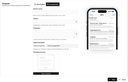
If the mailing’s template was created using the Web Builder, all items in the “Template” section except “Preheader” count as email content and can be edited via the Web Builder after clicking “Select in Web Builder”. For an Email Builder template, these items can be edited in this “Template” section.
The “Preheader” input field lets you optionally specify a brief summary of the mailing’s content. This summary is then displayed directly in the recipient’s inbox if their email client supports this.

You can have the preheader – and with Email Builder templates also the subject – generated by the AI assistant from the text of the email. For this, click the magic wand button to the right of the respective input field.
Click “Save” when you’re done.