
Automations allows you to define topics and let visitors to a Web-Builder-based website subscribe to one of them via a form. If you then create a mailing and specify a topic for it, the subscribers to this topic are added to the mailing’s recipient list.
Topics
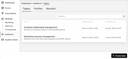
To create a topic, click the corresponding button below the topic list.
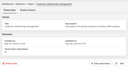
To view a topic’s details, edit its title or description, or remove subscribers from it, click the topic concerned. The view that then opens has an “Overview” and a “Subscribers” tab, and an “Edit” button for these purposes.
Adding subscribers to a topic
You can add subscribers to a topic by importing a CSV file. For this, click “Edit subscribers”.
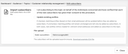
When doing this, checking “Update existing profiles” will replace a profile’s details with the corresponding subscriber’s details from the CSV file.
Profiles and subscribers from the CSV file are matched by their respective email address.
Using forms
You can create forms for subscribing to a topic using the widgets the Web Builder provides for this purpose. For details, see Setting Up a Form on a Website.
Among these widgets, you will find a “Form Checkbox Widget” for letting visitors subscribe, for example, to a topic. When you then register the form, you can specify in the form’s details the particular topic the “Form Checkbox Widget” refers to.
If a visitor subscribes to the specified topic, a profile is created for this visitor’s email address. In this profile, the visitor’s subscription is recorded and thereby documented as their consent to receive emails on this topic. The other submitted pieces of data, e.g., the visitor’s name, are added to the profile as well.