
Automations offers three variables that you can use in an email template to generate recipient-specific links that allow recipients to unsubscribe from the newsletter, open the web version, or agree (or decline) to receive further emails.
Adding an unsubscribe, web version, or double opt-in link
Unsubscribe link
Newsletters mostly include a link for unsubscribing from them. For this purpose, Automations generates the URL of such a link if the __unsubscribe_url__ variable is found in the email content. It is then replaced with the recipient-specific URL.
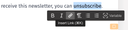
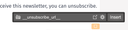
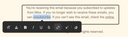
The Email Builder’s link tool
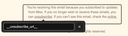
The Email Builder’s link editor
If an email recipient clicks this link, Automations removes the email address concerned from the subscriber list of the corresponding topic and opens a web page confirming this.
You can use this variable as the link target of a button widget, for example, but also link text to it. To create such a text link,
- mark the words to be linked,
- click the “Insert link” button on the text formatting toolbar,
- specify
__unsubscribe_url__as the link target, and - finally click “Insert”, or, with Email Builder, close the toolbar.
Web version link
Analogously, you can add a link to your template that enables the mailing recipients to view the email in their browser. For this,
- specify
__web_version_url__as the link target, - and activate the “Web version” switch in the mailing details.
Double opt-in link
If double opt-in is enabled in the mailing details, you can use the __doi_url__ variable to insert a link pointing to a corresponding automatically generated confirmation page – for example, for a newsletter subscription request via your website – into your (transactional) email.
On this confirmation page, the email recipient can then either confirm their original decision to receive further emails, or revoke it.