After adding recipients to a mailing, and switching to its “Recipients” tab, you can check the profiles originating from the selected topic (“Topic subscribers”), as well as the uploaded recipients. You can see here whether the recipient list appears to be complete, or if it includes recipients you would rather want to be removed.

Reviewing the Recipients of a Mailing
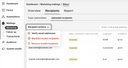
To see a recipient’s full details, click the recipient’s entry in the list.
Verifying the email addresses
When sending marketing emails and follow-ups, it is desirable to avoid undeliverable emails by consolidating profiles (topic subscribers) as well as uploaded marketing email recipient lists on a regular basis.
This is what email address verification contributes to. It determines whether a recipient’s email inbox exists and is able to receive emails.
Recipient actions
Via the “Recipient actions” of a mailing, you can verify the recipients’ email addresses and then move invalid email addresses to the blocklist, or remove them from the mailing’s recipient list. This will reduce the number of bounces after the mailing has been sent.
After the check, the results are displayed in the “Email address verification” column, with individual addresses classified as “uncertain”, “valid”, or “invalid”.

If a validation result is “uncertain”, the mail server in question does not allow the validity of the email address to be reliably assessed, or the address belongs to a domain that accepts any email username.
A verification does not send an email
Instead, it asks the mail server responsible for the address whether it would accept a message, and ends the conversation before anything is sent. The address is then assigned one of these statuses:
- Valid (green): The mail server accepted the address, or an email to it was delivered.
- Uncertain (yellow): The check yielded no clear answer, for example because of a timeout, or because the domain accepts any address.
- Invalid (red): The mail server rejected the address, the domain has no mail server, or an email to it hard-bounced.
- Not verified (gray): There is no result for this address.
The status is displayed as a colored badge that appears in the “Email address verification” column of profiles, topic subscribers, and mailing recipients, and next to the headline of a profile or recipient.
Your mailings keep the status up to date
Each address has one current result, shared by the profile, the topic subscriber, and every mailing recipient with that address. Every delivered email sets the status to “Valid”, and every hard bounce sets it to “Invalid”. This way, the deliverability status of your audience builds up with every mailing you send, even without a verification.
Viewing a recipient’s details
After clicking an entry in the “Topic subscribers” list to view the corresponding profile, or clicking a recipient entry in the “Uploaded recipients” list, the recipient’s details are displayed.
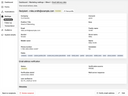
A recipient’s details page consists of several sections that may be different for a profile and an uploaded recipient:
- Profile / Recipient: The data and the corresponding field names of the profile or, respectively, the recipient are displayed here. If an uploaded recipient is associated with a profile, you can view it by clicking “View profile” at the top of the section. The email address verification result is displayed there as well.
- Tracking: Here, the tracking details associated with the profile being viewed are displayed, e.g., the website from which the tracked data originates. Not available for uploaded recipients.
- Email address verification: This section displays the status and underlying information regarding the verification of the recipient's email address.
- Metadata: For profiles, this section merely states when a profile was created, last updated, and blocked. For uploaded recipients, also various details related to the delivery of the mailing to the recipient’s email address are displayed, e.g., when the email was processed, whether it bounced, etc.
At the bottom of the page, there are buttons for returning to the recipient list, deleting the recipient, verifying the email address, and editing the recipient data.

Before editing a recipient’s data, make sure that the person in question has consented to the changes you are about to make.
Deleting a mailing recipient
Deleting a topic subscriber as a mailing recipient comes down to deleting the corresponding profile. Check carefully whether this is what you actually want, or if unsubscribing the profile from the mailing’s topic is sufficient.
You can directly delete an uploaded recipient from the mailing as long as the recipient hasn’t been processed in the course of sending this mailing.