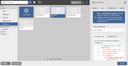
With Web Builder, a theme defines the CSS classes to be applied to templates for marketing or transactional emails. There’s a built-in default basic theme that contains all the available widgets with exemplary content.
Adding a Web Builder Theme
Themes are stand-alone global content, meaning that a template doesn’t contain but merely references the theme you selected for it. As a consequence, changing a theme and then publishing the working copy in which this was done, causes the appearance of all templates using this theme to change. For this reason, and also because modifying themes requires deeper knowledge, your Web Builder can be set up to let only members of a specific team edit themes, e.g. designers.
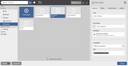
Themes can be created and edited using the Content Browser you can open via the sidebar. Like with all content, you require a working copy in “Edit” mode to be able to change a theme. A new or modified theme becomes available and is applied to the templates referencing it after publishing the respective working copy.
Content Browser
After opening the Content Browser, first select “Themes” on its sidebar to the left. To change one of the listed themes, simply click it and edit its content in the details view to the right.
To create a theme, you can duplicate an existing one and refine it, or click the “Create object” tile. The latter creates a theme with the default CSS classes already in place.
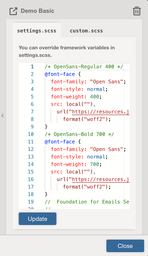
Next, select the “Editor” tab. A theme is made up of two files, “settings.scss” for the basic classes, and “custom.scss” for adaptions and additional styles. The framework uses SASS variables, sets up the padding and more. Of course, you don’t need to use SASS in your additional styles. The compiler can also handle plain CSS.
Both files can be edited on a separate tab. When you are done, click the “Update” button further down to have everything compiled. If there is an error, a corresponding message is displayed.