You can generate a questionnaire and also test it in every stage of the specification. After testing, you will provide it to other users.

Generating a questionnaire
Questionnaire hyperlink generator for testing
Creating the autologin questionnaire hyperlink for the web portal
Not every marketing employee has access to questionnaires. A marketing employee with the questionnaire view can test a web portal link, even if he or she does not have access to the questionnaire module. In the Questionnaires tab of the marketing process, there is a select function (Create link in the function bar for a marked questionnaire) for creating the autologin questionnaire hyperlink. The questionnaire and the marketing case are preset. The contact and activity selection can be restricted in accordance with the case.
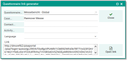
Generating the auto-login URL
Generating a questionnaire
The Generate questionnaire function creates one or several interlinked questionnaire dialogs, based on the specification. Modal as well as non-modal dialogs are always generated. After a query, the function deletes all dialogs that were created before.
If you have changed some field types of a questionnaire for which answers already exist, generating it again causes the system to bring this to your attention by means of the message: "You have changed field type specifications. Existing answer records must be adapted and the questionnaire anew be created".

Attention: It is important to know that users who are registered in Upgrade-Loaders (e.g., customizer PSA, Salesadmin) are not permitted to execute this function! The questionnaire module generates dialogs as interface objects that are anchored in the repository. These dialogs must remain upgradeable. So these interface objects must not belong any customizer, for example!
Check for identical IDs
When a questionnaire is created, it is automatically checked for double or missing IDs in the definitions (topic IDs, question IDs, answer option IDs). Double IDNs (topics, questions, answers) are detected and cause the generation to be terminated with a message. Note that missing IDs are indicated, but the questionnaire is generated nevertheless.
Check for options in the template
If a question template offers fewer options than needed (e.g. checkboxes in the question dialog), the additional options can be entered, but the system will check during the generation process if more options were entered than the template offers. After a corresponding message, you can correct the template.
Open and test questionnaire
Using the Open questionnaire function, you can check the result in the modal or non-modal presentation. You can check the layout, fill out the questionnaire test-wise, and check the navigation. The Save and close button lets you intermediately save the questionnaire. The result of the filled-in questionnaire is only stored after clicking the Finished button, and is then displayed in a text window. However, no action and no Save-userexit is executed, and no answer record is saved. You can test this only by means of the respective function in the contact, appointment, phone call or marketing action where you or the user also has the same Save and close and Finished buttons available to intermediately save and, respectively, to finally store the questionnaire.
Providing a questionnaire for users
After a questionnaire has been generated, it must be provided to those who want to use it. When providing it, you can also specify the questionnaires a user can select from after executing the respective function in the contact, appointment, phone call or marketing action.
Release status and questionnaire selection
In a questionnaire selection, only released questionnaires are selectable. For this, you can place one or several release statuses in the PSA_QST_STA_QUE variable, which will limit the questionnaire selection to these statuses. By default, the variable is set to the PSA_QST_ACT status (corresponds to active).
For selecting questionnaires with the created status, for example, the PSA_QST_STA_QUE variable would have to be set to the value (data) PSA_QST_CRE (corresponds to created).
Note: The "Select a questionnaire ..." selection dialog, intended for selecting visit reports of an appointment, for example, includes the status column. The status allows the user to immediately recognize why not all of their questionnaires are selectable.