For information about setting up a data flow, see Dynamic content.

Using a dynamic flow in an email or a module
Once the dynamic flow has been configured for the relevant project, it can be used within your modules and emails.
You can apply the product data found in the flow to the following elements: section, group, text, image, button, code, video, and slider.
Step 1: Choose a section or module to make dynamic
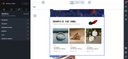
First, within the email or module, depending on your needs, choose a structure to make dynamic.
Step 2: Set the data flow to connect to
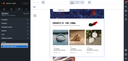
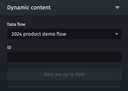
Open the “dynamic content” category. Then, from the drop-down menu, select the data flow you want. Now you are connected to the dynamic flow.
Step 3: Set the ID of the content to display
For a CSV flow, this ID corresponds to one of the unique values present in the column defined as the reference variable of your flow (e.g. a product reference, a SKU, etc.).
For an RSS flow, this ID corresponds to the index of the item present in the RSS flow (1 corresponds to the most recent item in the RSS flow).
Step 4: Retrieve and apply dynamic fields to the structure
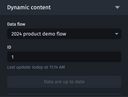
Once the ID is set, the variables available within your flow appear. Simply click on the “copy” icon, then paste them where you want in your email.
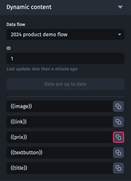
These variables can also be used directly in the content of a Text or Code element. The fields that support variables coming from a dynamic flow are as follows:
- Source (for the URL of an image or background)
- Content (for the label of a button)
- Alternative text
- Link
- Link title
- Poster (for video element)
- Video source URL
- Fallback image (for Video and slider elements)
- Background image (for slider element)
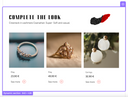
When leaving the area, the product data will automatically appear. Your module or section is now dynamic! You can identify it by its name and its purple outline.

Step 5: Optional – Make the content static
If the data does not meet your expectations, you can freeze the content to make it editable. To do this, go to the element options by clicking on the “gear wheel” icon, then click on “Make content static”.
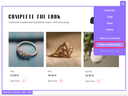

Once frozen, the data will no longer be updated if the flow is updated.
When exporting the email, all data is automatically frozen.

The Email Builder lets you save sections as reusable modules. This means that you can also save a dynamic section as a module, which can save you a lot of time!