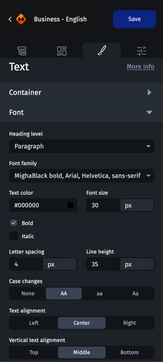
You can set specific fonts (system fonts, special fonts or Google fonts) to customize texts in perfect alignment with your corporate identity.
Customizing the font of an element
Fonts always belong to a font family. For example, if you set the Arial font, other fonts such as Helvetica and Sans Serif will automatically be selected as alternative fonts (or fallback fonts). This ensures that, if the main font is unavailable on the email recipient's device, the fallback fonts will take over to ensure visual continuity.
For more information about special fonts, see Integrating and managing special fonts.
The application scope of an element’s font
Even if the font is not directly visible on image and video elements, it will be used to format the associated alternative text.
Customizing an element’s font
Most options are common to all font customization elements. If some settings are missing, this means that the selected element does not support this feature.
The customization options in the “Font” category are divided as follows:
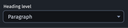
Heading level
Assign different heading levels (from Heading 1 to Heading 6, or Paragraph) to structure pieces of text hierarchically, improving accessibility and readability.
For more information about email accessibility, please refer to Improving email accessibility.
Font family
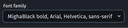
From this drop-down list, select the font family you require.
Text color
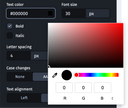
Set or copy and paste the hexadecimal color code of your choice. Otherwise, click on the square to the right of the field. A pop-in will appear allowing you to select a color, or use an eyedropper (the appearance of the pop-in may be different according to your operating system).
Font size
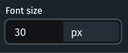
Set the size you want in pixels. For more information about font size, see Texts.
Appling bold or italic
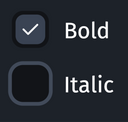
Check the option you want to make the text bold or italic, or both.
Letter spacing
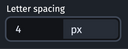
Set the value you want in pixels to space the letters in the text.
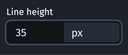
Line height
Set the line height in pixels to adjust the spacing between lines. For more information about line height, see Texts.
Case changes
You can force different case formats:
- No change (None)
- Upper case (AA)
- Lower case (aa)
- First letter capitalized (Aa).

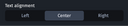
Text alignment
Choose the horizontal alignment of the text: Left, Centre or Right.
Vertical alignment
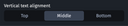
Choose the vertical alignment of the text: Top, Middle or Bottom.

If the text container has no defined height, it will be impossible to view the vertical alignment.