JustRelate CRM features a status bar, an area in which the state of a record can be displayed with symbols at the top right of a master form, e.g., with companies or sales cases.

Status bar
See also: Status monitoring in forms
This display is controlled by the integrated escalation management.
Implementation of the escalation management
In the Administration / Process definition under General menu, there is the Escalation levels tab. As an administrator, you can freely define the standard escalation levels per process here. The following attributes need to be specified:
- Level number
- Level name
- Standard action of the level (selection: message, task, mail)
- Parameter for the analysis method of the level
In the Contacts tab, you can select internal contacts for every level for which an action should be performed. Moreover, it is possible to assign Roles to a level. These roles (easy customization) are placeholders for contact roles in the respective case to which the process refers. The roles are resolved if an escalation triggers an action. In the Action field, you can overload the standard action of the level with a person or role. Actions are defined in the Administration / Sales cases / Escalation actions menu.
Adding your own elements to the status bar
You can define your own status bar elements in the escalation table of the process definition. For this, the escalation table has been extended.
The functionality of the previous escalation implementation is still available.
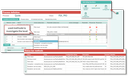
Advanced escalation table
The following rules apply:
- In the status bar, at most 3 elements can be displayed in the standard.
- For every element, any number of levels can be defined.
- A default level is required per element. It is given the level "-1".
- There is no user-specific configuration.
The level can be determined in the following ways:
- From a filter result; e.g., the company is included in the result set of the filter "x". As the parameter, the Filter-GID is specified.
- From a Drill down analysis; e.g., the company is included in the fact table of the drill down "x". As the parameter, the drill-down path is specified.
- From the value of a field; e.g., the turnover is < X. As parameters, the field name, comparison operator and value are specified.
- From the result value of an arbitrary method. As the parameter, the method name is specified.
The parameters can be specified in a configuration dialog. For this, the Escalation level/status bar list includes the Apply configuration function. If further selection methods are provided in the process of customizing, the corresponding configuration dialog can be specified in the administration table under Administration/Tools/Status bar methods.
You can copy the whole configuration of a level (Copy configuration) and transfer it to a new level record.
The computation of the statuses is controlled by the CRM Refresh status bar job. Its identifier is PSA_CCP_HEA. It executes the actions or methods set in the table and records the level values in the Status bar 1 level, …, Status bar 3 level fields in the master data record as well as the icons defined for them in the Status bar 1 picture, …, Status bar 3 picture fields.
You can start the job directly from the definition table (Apply configuration).
The dimensions of the icons provided per level must not exceed 24 px × 24 px. For each element, an individual default icon should be provided (gray). It is displayed if no level value was specified by the job. If no default icon is present, no icon is displayed, i.e., the position in the status bar remains empty in this case.