See also: Request processing if you don't use the trade fair app

Importing data from the trade fair app
In the course of acquiring trade fair leads, the office staff can import contacts, trade fair reports and appointments that were captured using the mobile trade fair app. After all data for the appointments of the trade fair has been captured, and the trade fair reports have been automatically synchronized into the CRM system, the data is stored as appointments in an intermediate CRM table.
You can open the import tool the CRM offers via the Extras/Fair lead import menu. Here, the back-office staff should check the appointments and fair reports prior to importing them, correct them and add information as necessary.
Tip: If the trade fair reports and appointments of several events are synchronized in the import table, it helps filtering by fields containing the name of the trade fair in the CRM, and thereby process one event after the other.
- View details of the event (attendee, questionnaire responses, images),
- check and edit the contacts (company and person) before import,
- control the automatic assignment of an account manager,
- check for contacts already present, i.e., for duplicates when importing the events.
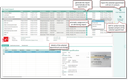
Fair lead import tool
Qualifying an appointment
For a marked fair report in the detail form, you can
- qualify attendees, and import them on the spot,
- check questionnaire answers,
- check images and store them as documents right away.
Editing contacts
Data may have been recorded only in a rudimentary form for various reasons (time pressure, visitor does not have a business card) so that extensive post-processing of the contact data may be necessary. If you are sure that a transferred company and the associated persons are already present in the CRM system, you can find and apply them. For this purpose, a button function is available in the Attendee tab under “Attendee qualification” for the First name/Name and Company fields.
- First name/Name opens the standard contact selection, restricted to persons, and the search is preset with the entered name. If a company is already assigned to the attendee record, the results list is preset with the company's employees. You can now either take over an already existing contact or initiate the search in the entire database. OK causes the duplicate merge mask for the person to be opened, and the information you selected in it (e.g. new phone number) is transferred back to the contact import mask. During the subsequent import, the person's data will be updated with the merged data from the import mask. No duplicate check is performed.
- Company opens the default contact selection, restricted to companies, and the search is preset with the company name entered. You can add to the search term if necessary, run the search and check it. OK causes the company already existing in the CRM to be assigned to the attendee record, and the company name is updated accordingly.
In the Attendee tab of a selected fair report, you can select contacts and use the functions on the subdialog (function bar) to
- import the contact,
- show the person in its contact form,
- show the company in its contact form.
Contact post processing
Contacts entered on the fly by the field service or any account manager can be marked for post-processing in the CRM app. In the CRM web client, contacts that are in post-processing can be checked for duplicates using a wizard (post-processing wizard), and the contact data is corrected or merged.
See also: Contacts, Contact postprocessing
Import appointment
Importing a fair report from the intermediate table creates an appointment in the CRM at the corresponding event. At the same time, the standard check for contacts already present in the CRM takes place, so that duplicates can be taken care of.
Things to know about the import
Address import
The import tries to set the address as a main address with a postal flag. If it encounters a main address with a postal flag, it creates an "Other" address without a postal flag, and the main address retains this flag.
Phone or fax number
When creating a person or company, the phone and fax numbers taken from the person's business card will also be transferred to the company if these fields are empty in the company. The phone number is a mandatory field that must be filled in when creating or saving a contact.
Status and import date
The Status and import date are only set after the entire process (including visit report generation) has been completed. This prevents the "imported" status from being set even though further action is required, e.g., in the case of termination or an error.
Business card
The import usually creates a business card as an image at the person if no such item was stored for it yet, or it replaces an already existing (possibly outdated) business card as an image at the person. The "old" business card is stored as a document at the person.
For imported contacts, the status is set to imported. By searching for or filtering by this status (possibly also by the creation date), these contacts can be quickly identified and further qualified if required, independently of the appointments.
The back-office staff or marketing can then further evaluate the fair reports, and qualify the event and the contacts using the standard JustRelate CRM modules and tools.