Document editing in MS 365 - OneDrive

The documents concerned are passed to the Microsoft 365 app in the browser for viewing or editing. The Check Out, Check In and Save As functions open dialogs for navigating the OneDrive folder structure.

  • On systems with the DIM active, you can also switch to the file system.
  • On systems without DIM (e.g. Mac), the File System function (button) starts the file download or opens the upload dialog.
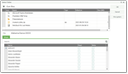
OneDrive, selection dialog

Via the releases in OneDrive, any internal and external instances (e.g. customers) can be involved in processing a document.

Prerequisites

  • The user must have the Office profile (PSA_OFF_365).
  • The variable PSA_OFC_APP = MS365 must be set. The document functions then automatically trigger the MS365 coupling. The COM add-ins of locally installed Office add-ins are not used.

For details, see Notes for the administrator.

Attention

Attention: With MS 365 coupling, documents that are "in progress" and are processed via "View" or "Save as" in OneDrive may deviate from what is stored in the CRM database. The documents will only be up to date after they have been checked in to the database.

View document

  • Office file formats are opened in the browser (if required, select the MS365 account), all other file for­mats via the DIM or as a download from the server.
  • This function saves a copy of the file in a temporary OneDrive folder (JustRelate CRM Temp). There, another folder is created with the record GID as its name. This allows the docu­ment name to match the one in the CRM without any conflicts. The temporary folder is located in the personal area of the OneDrive environment of the logged-in user. The email address is used to iden­tify the user in OneDrive.
  • A URL for viewing the OneDrive document is then generated, and the document is opened in the browser window.

Note: You can edit in this window, but the changes are not saved when the document is closed. A document that has already been opened for viewing cannot be opened again in your personal OneDrive.

Save as

  • This function opens a selection list with your online folders for specifying the target directory. On systems with active DIM, you can switch to your own file system.
  • After confirming the selection, a copy of the document is stored in the selected folder. If only "OK" is clicked here without selecting anything, the document ends up in the higher-level "Own files" area.

Edit document

  • This function creates a temporary folder for each document at the OneDrive “JustRelate CRM Temp” path where a copy of them is stored. The temporary folder is persisted in the metadata of the respective document as the default for a later check-in process and re-editing.
  • A URL is then generated to view the OneDrive document, and the document is opened in the browser window for editing. All Office 365 formats and PDF files will open the browser for editing with the associated app. Unsupported formats are rejected.
  • A document can be edited further in the browser at any time as long as the status of the document is in process.
  • If the checkout location is access protected and the person checking out cannot be reached, then the status can be manually set to in development by authorized persons (status person).
  • The Checked in on field shows the date when the docu­ment was last edited. The "Computer" field is hidden, instead of it, the editor is stated (by).
  • After editing in the browser, the document must be checked in manually.

Checking the document in to the database

A document that has been checked out to OneDrive can be checked back in to the CRM at any time.

Attention

Attention: This overwrites the document in the database.

Reduced (fast) check-in process

On Check-in, the function determines the path to the checked out file and checks if there is only one matching file in the OneDrive folder. If this is the case, then the document is checked in in a CRM-compliant manner (including a query to create a new version and change the status to in develop­ment).

Check-in process with file selection

If there are several files with this path, then the OneDrive file selection opens to determine the file to be checked in. Its location and the checked out file are preselected. The system assumes that in this case, a file is intentionally chosen and selected to overwrite and replace the document in the database. After OK, the file is checked in in a way conforming to the CRM.

The document copy in OneDrive is retained and can also be checked in several times. This means, for example, that no check-out is required for making changes subsequently.

The information from where the file was checked in is present at the document as a reference.