Type and template examples

Here are a few examples to illustrate how you can use dialog templates to adjust the look and the interaction options of a questionnaire.

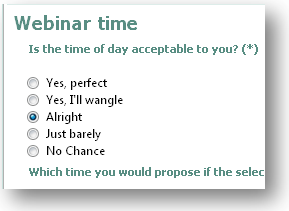
For example, if a row (a subject) has the Text type and uses the Radio button template, this results in the following appearance, and in only one possible answer.

It is important here that the chosen type is Text, because the answers are to be positioned as texts next to the radio buttons. Only the selected answer is passed to the answer table.

As you can see, there is also another subject ("Which time …?"). On the same topic, simply another question is asked, which appears on the same questionnaire page.

Radio button template allows only one answer

Multiple choice instead of radiobox

Here, merely the template was modified, immediately resulting in a different interaction pattern for the interviewees.

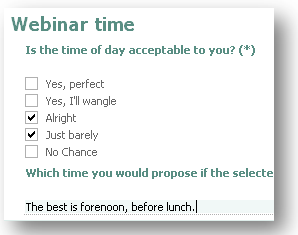
If, for example, there are several answer options, and giving more than one answer should be possible, you would leave the Text type for the question and select Multiple choice as the template. The interviewees can then choose several options, and the ones they selected are passed as a comma-separated list to the answer table.

As you can see here, a free text input is also possible in the subject on the same page, even though Choicebox is actually selected as a tem­plate.

A Choicebox can declare a selection, or, if no selection was made, is "empty", which enables free text input. This way, the interviewees are not limited to the given options.

Template multiple choice allows several answers

Choicebox for selection

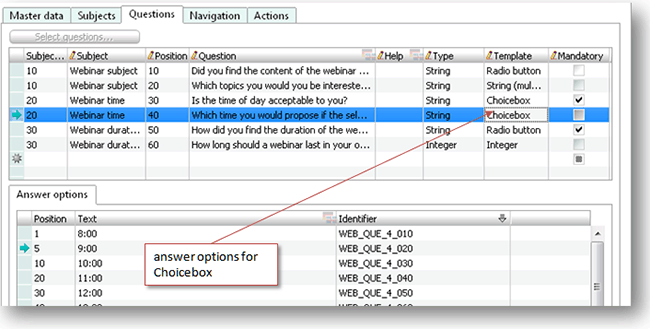
Usually, the Choicebox is used for offering several options for selection. In this case, all selectable answer options must exist, of course.

Use of the Choicebox template with answer options for selection

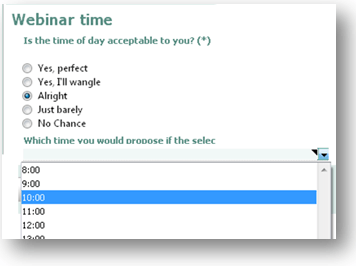
Then the interviewees receive, for example, this view:

Selection possibility with times through the Choicebox template

Active flag at the questions of a questionnaire

If there are already answers for a questionnaire, it is actually not possible to delete questions or topics. However, it happens that questionnaires for surveys change in the course of time, and questions can or must no longer be asked. However, "renaming" the question is prohibited, as the history must not be changed.

In the question list, there is a flag, Active, (last field of the line). When creating a question­naire, the questions that don’t have this flag set will be suppressed and not inserted into the form or ques­tionnaire.

Do not print in report

To prevent questions or answers from being printed, the flag Don't print can be used. If, for example, the email address is requested only to check it against the system, this question doesn’t need to be evalu­ated. Likewise, e.g., free texts should possibly also not be evaluated or output. This means that the question is "active" (see above), but won’t be output to the report.

File picker template - checking in a BLOB

Defines a file selection dialog (file picker) in the questionnaire. When the questionnaire is processed, the template generates the path of the file concerned (e.g., of the company logo of a new contact). For trans­ferring the file to the database, the Save answer in field action needs to be specified in the questionnaire, including the corresponding action parameters, e.g., /CONTACT/PICTURE.

When the questionnaire is saved, the file is transferred to the server, is processed by the action and, in this case, associated with the contact. You can use this functionality also for other files that should be saved together with the questionnaire, e.g., as documents.

Info

Admin: The destination field for this operation must be made available as a BLOB field through customizing.

File picker template – checking in a document

Using the File picker, a document can be checked in and linked to the activity, the project or the contact in the answer set. For this purpose, the Create Document action is available for use in conjunction with the File picker question tem­plate. By means of the configuration (parameters), you can adjust the document type and the kind of relation­ship (activity, contact, project) to be applied.

For inserting hyperlinks (e.g., the URL of a web page), corresponding questionnaire templates are available (for the definition). In the Questions tab, the link text to be displayed can be provided as a question, also an explanation as a "help text", and the URL as the "standard entry". The "URL" template dialog is read-only, because its purpose is to display a hyperlink, not to let the user enter a URL. So the question specifies the URL. The template can also be used in the Web Client where the link destination is then opened in a new window.