Attention: Please note the Discontinuation of the Windows client.

Coordinating appointments subject to release in the planning board

The planning board allows you to coordinate appointments that can be planned, i.e., are subject to release.
Requirement
For appointment and resource planning in the service planning table, it is required that there are technical and personnel resources as well as appointments subject to release.
Appointments subject to release
Appointments subject to release were marked as such by the administrator using the To be released flag for the appointment type (subtype). It controls whether an appointment can take the Planning, Resources assigned or Released release levels.

Admin: In the Administration/Activities/Sub types list, appointment types that may require planning, e.g. demo or service action, can be distinguished from usual appointment types using the To be released flag. If this flag is set, the appointment type is displayed in the activity list of the resource planning and can be planned.
Visibility of appointments subject to release (service appointments)
In the Team calendar, appointments, whether subject to release or not, are always visible. In the Entry portal, you will see these appointments only if they were released (service resource planning).
Admin: In the "Activities/Release level" administration table, there is an additional flag, "visibility". It controls the visibility of activities in the Entry portal, and whether the activity is included in synchronization functions or jobs. This way, not only finally released appointments, but also appointments with release level conditions (e.g., the resources were assigned) can be made known to a service technician for fine-tuning purposes.
Locking appointment status and release level
Appointments subject to release cannot be released without having assigned resources to them.
For appointment types that include planning, the appointment status is only set to the Firmly agreed open status (OPEN) if the appointment has the Released release level, i.e., if the required resources have been provided.
Appointments not subject to release (common)
For all usual appointments that are not subject to resource planning in the planning board, no further restrictions apply, because these appointments are always automatically Released.
Coordinating appointments subject to release
In the planning board, plannable appointments (subject to release) are always coordinated with the aim of achieving balanced planning and avoiding overloading employees, which is indicated by the corresponding red utilization beam. Coordination includes:
- Shifting appointments (interactively in the planning board, or by opening the activity and directly changing the appointment in the activity form). You can open the activity by double clicking it or via the Properties context menu.
- Assigning resources and thereby meeting the requirement for releasing the appointment. Only then the status of the appointment is set to Firmly agreed.
- Green bars cannot be rescheduled since these appointments have already been released. However, you can revoke the release of an activity (Reset release from the context menu).
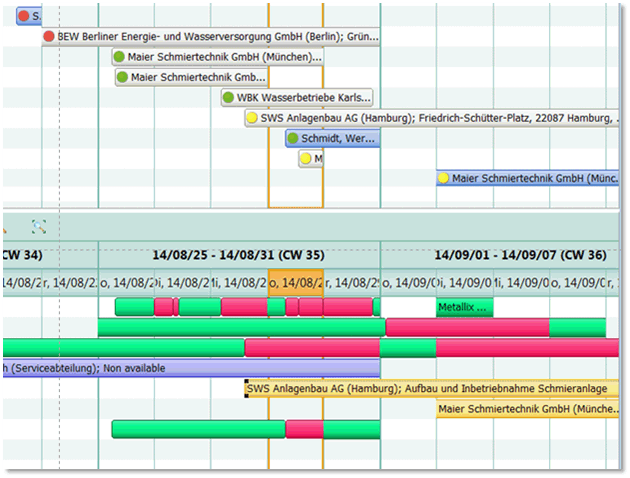
Resource planning with action bars
Opening the resource planning globally or selectively
You can open the planning board for global or selective planning:
- Global via the Sales/Resources/Resource planning menu. The activity list only loads those appointments that are open and can be planned, restricted to the activity type set most recently (persisted per user).
- Selectively for activity-related planning via the Resource planning function of the appointment. The activity list only loads the current appointment if it is open and can be planned.
- Selectively for service-object-related planning via the Resource planning function of the service object. The activity list only loads the service object appointments that are open and can be planned, restricted to the activity type set most recently (persisted per user).
- Selectively for planning service-duty appointments from the Sales/Contracts and service/Resource planning menu, and also from the Contracts and service navigator area (Win client), as well as via the service order. If you open the planning board via the function bar (Planning/Resource planning), you will only see service actions of this order. The All service actions filter in the activity area delivers in the activity list all open future field activities that have not yet reached a final activity status. The time window is automatically determined and is displayed in the toolbar of the planning board.
In all cases:
- The displayed period is automatically determined by the loaded appointments.
- The resources are loaded according to the most recently set group selection (persisted on a per-user basis).
The action bars in the activity list are as long as the desired periods of time. The color of the bar indicates the planning status of the service actions.
- Red: No resources assigned yet (immediately after creation).
- Yellow: Resources have already been assigned.
- Green: Action has been released.
For example, the Service personnel filter at the bottom of the resources list automatically delivers all staff member resources of the service department (Department attribute = "service").
The beams in the resources list indicate the utilization degree of the individual resources.
- Dark grren: Actions or appointments are already assigned to the resource.
- Dark red: Overloaded (workload > 100%)
- Blue: Other internal activities of the resource, for example, vacation with a staff member resource. If you expand a resource (+), the individual activities become visible (yellow or green).
- Yellow: All appointments to which the resource is already assigned.
The system modifies the time query condition in such a way that also truncated activities are part of the result set. It searches for activities whose start or end lies within the specified time span. The client automatically ensures that only full days are displayed.
If you change the period of time in the planning board using the calendar controls in the toolbar, and thereby trigger a new search, the currently selected filter remains active. Only its time condition is overwritten.