Attention: After the Windows client was discontinued, resource planning via the interactive planning board is only available if an environment with the Windows client version 7.6 under Windows 10 has been provided for it. See also Discontinuation of the Windows client.

Planning, scheduling and processing service actions

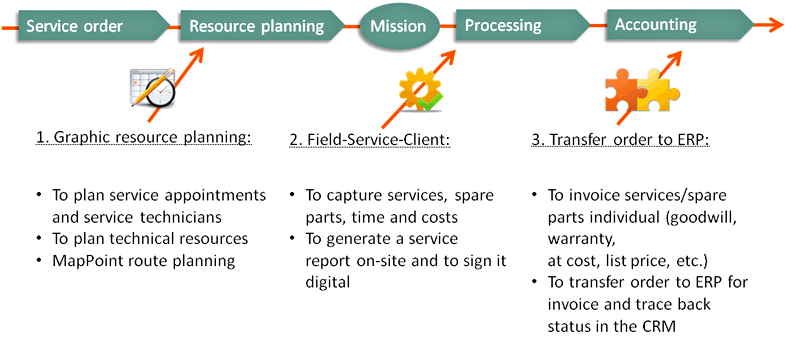
Service missions and processes
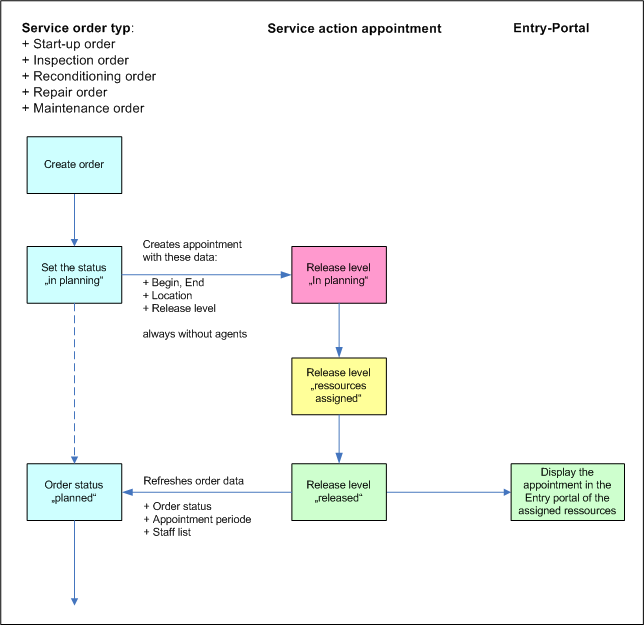
Planning course
In the Processing tab, you can make the personnel, appointment and spare part arrangement as well as assign standardized service packages for a service mission.
Scheduling and defining service appointments
Rough scheduling
Resource planning subform: A Planned time span after an arrangement with the customer can be entered; entry of the actual appointment as confirmed by the customer. For rough scheduling, the Preferred time from ... until ... and the Time scheduling fields under Resource planning are available to you. You can preset time periods or, respectively, the actual appointment as confirmed by the customer.
Detailed scheduling
You can create the exact mission appointments for service technicians from the personnel list using the Activity/Appointment function. The appointment registration form for creating a service appointment opens. The Subject, Type, Responsible and Main participant fields are automatically preset. After specifying the precise mission appointment and saving, the service appointment automatically appears in the Entry portal of the responsible service technician. If you create the service appointment for a team, all its members are automatically informed. Resources that are not managed in the system, e.g., leased work equipment (vehicles, special tools), can be entered in the Resources tab of the activity.
By exporting the activities to MS Project, all activities of the service order can be displayed graphically, like with a service call. You can also mark several service orders in the list. For each order, one project sheet is generated in MS Project.
Note: The interface to MS Project only allows creating activities in MS Project, but not synchronizing them between MS Project and JustRelate CRM.
As you create an appointment, the following contact assignments from the service order are applied:
- Technical agent: Responsible (if Technical agent is not filled in, the logged-in user is made the person responsible)
- Customer: Main participant without a role
Note: If you create an appointment via resource planning, then the main address of the customer is always used as the location.
- Service technician: Necessary attendee
- Service engineer: Necessary attendees
The internal contacts are set as "Necessary attendee" in the appointment. Contacts with a different or empty role are not applied to the appointment.
Resource planning
The interactive planning board supports you with scheduling and resource planning for service assignments. It can be opened from the Service menu or directly in the service order. During planning, data is exchanged between the service order and the planning board via an interface. For example, the customer's requested date is taken into account when creating an appointment, or the appointment data and assigned resources are written back to the order after release.
See also: Service resource planning
Choosing the mission personnel
In the Resource planning / Personnel subform, only the person roles defined for the service order type are offered, e.g., service engineer and service technician. The personnel list is automatically preset with the contacts already assigned (Business agent, creator ...). Select the required service technicians here and assign the Role in project reserved for them.
Service teams usually combine employees from the service department according to the task or location, e.g. electrical, hydraulic, mechanical service team. Teams can be defined via the Teams master data administration. When admitting a team, you can mark it and use the Explode teams function to add its members individually to the list if required. Note that a team’s role definition is not passed down to the team members in this process.
See also: Actors and personal roles in the service
Spare parts, material and service packages
First, please get an idea of what the customer is using, i.e., of the service object in the customer's installation and the service packages and spare parts.
In the Processing/ Products/services subform of the service order, you can assign spare parts and services to it. The product assignment applies to all items, but you can filter them by category in the selection dialog through predefined filters. Spare parts and services from the master lists can also be directly associated using drag and drop.
Service packages are standardized work packages, as for example "Maintenance of plant xyz" or "Retightening of all screw combinations". Spare parts and service packages can be calculated like products. Typically, there is a special calculation group for them.
The master data of spare parts and services can be managed via product management, with a corresponding restriction to the Service packages and Spare parts product categories. Maintenance-relevant classification is possible via an IH type. Restrictions to other categories can be made possible through customizing.

Admin: As an administrator, you can open the master data management for services or spare parts via the Administration/Service menu, and after refreshing (F5), you will be shown product catalogs for the corresponding category.
Automatically created scope of supply in a service order
After a service order (with the exception of spare parts orders) has been created and has thus been assigned the created status, it is pre-assigned with operation-specific dummy items. The quantity and the copy status are 0. The neutral articles to be referenced must exist in the product database.
Name | Number | Category | Quantity |
|---|---|---|---|
Service per effort |
| Service | h |
Travel |
| Travel | h |
Expenses |
| Costs | piece |
Note: If neutral articles are also used as spare parts, they must have been created as different categories (twice, if necessary). Spare parts are exchanged after a service mission has been completed, i.e., replaced in the customer installation. If the item comes from a service order, it is used case-specifically and also needs to be replaced as such. In the corresponding selection dialog in the customer installation, the positions default to items that are part of an unfinished service order. If no service order (case) exists, the part is an additional part (a supporting part that should be replaced "neutrally").