
A transactional email is sent to a website visitor after they submitted a form in order to, for example, subscribe to or unsubscribe from a newsletter, file a bug report, purchase something, etc. Such emails work like acknowledgements of receipt, i.e., confirm to the visitor that their action either instantly had an effect or initiated a process in the course of which follow-up actions may take place.
Transactional Emails and Double Opt-In
To change a form’s settings, select it, and click “Edit” at the bottom right. If the form includes an option for subscribing to a topic, you can now specify it if you haven’t already done so. You can also define the following transactional emails for the form, ideally after having prepared the mailings you wish to use:
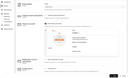
- A confirmation (thank-you) email to be sent to the visitor after they submitted the form.
- A notification email to be sent to, for example, the Automations user after the form was submitted.
- An email with an opt-in link to be sent to the visitor after they submitted the form.
By clicking the link in the email, the visitor can and must confirm that, for example, their newsletter registration via the form should be effective. Forms for subscribing to a topic always require a double opt-in.
After clicking “Edit” at the bottom right, you can enable the desired types of transactional emails for the form concerned. Afterwards, select the respective transactional mailing, and specify the sender or recipient address to be used.
If the double-opt-in option is enabled, please provide a link or button in the email template with __doi_url__ as the link target. When the double-opt-in email is then generated for a recipient, Automations replaces this variable with the recipient’s individual opt-in URL. Only after the recipient requested this URL by clicking the link or button, and then consented to receiving emails on the corresponding opt-in page, the confirmation email is sent.