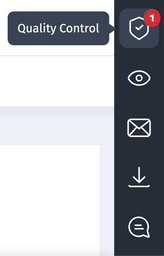
The Email Builder’s quality control aims to scan your entire email and identify optimization potential to ensure optimal deliverability. Quality control is accessible from the validation workflow pane via the “shield” icon.

Using quality control
For more information about the validation workflow pane, see The structure of the Designer.
At each stage of your email's design, the Email Builder analyzes its structure and code, and guides you through the necessary corrections and adjustments.
The more you respect emailing best practices, the more you optimize the deliverability of your email design. Keep in mind, however, that deliverability doesn’t depend on email design alone.
Aspects covered by quality control
The Email Builder’s quality control analyzes all of the following criteria:
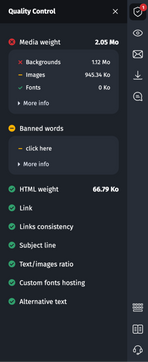
- Text/image ratio: It is recommended to have balanced visual and textual content in your email.
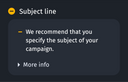
- Subject line: The subject of your email will be included in the title tag of your email, this contributes to all the expected deliverability criteria.
- HTML weight: When your email is integrated into your email routing tool (email service provider), it will add specific code to ensure that it works correctly. This can make the HTML file heavier when sending.
We therefore recommend that you minimize the weight of your HTML code as much as possible in order to guarantee the complete display of your email.
Below is the information provided by the quality control tests:
-
If the weight of the HTML is less than 70Kb, then the quality control test is displayed in green.
-
If the HTML size is between 70 Kb and 102 Kb, then the quality control test is displayed in orange.
-
If the weight of the HTML is greater than 102Kb, then the quality control test is displayed in red.

Gmail truncates an email if its size exceeds 102Kb. As a best practice, it’s recommended to have an HTML weight between 90 Kb and 92 Kb in the Email Builder, in order to make sure that it will be fully displayed with Gmail.
Media Weight: This includes the weight of the images, the backgrounds and fonts. Below is the information provided by the quality control tests:
If the media weight is less than 700 Kb, then the quality control test is displayed in green.
If the media weight is between 701 Kb and 1000 Kb, then the quality control test is displayed in orange.
If the media weight exceeds 1001 Kb, then the quality control test is displayed in red.
-
Links: Quality control alerts you if a link redirects to an error page. However, if you inserted a variable in the URL, this might be detected as an error.
Link consistency: This allows you to check whether the link inserted behind a text is consistent with the displayed text.
Banned words (spam words): Quality control indicates whether any words used in your email could be interpreted as spam words. In this case, it is best to replace it.
-
Custom fonts hosting: If one of your fonts is not correctly hosted, then you will be notified. In this case, it will be necessary to re-host your font.
For more information about custom font hosting, see Integrating and managing special fonts.
Alternative texts: For each image used, it is crucial to add alternative text (“alt” tag) describing the image. This ensures that recipients who don't view the images will get a sense of the visual content. The Email Builder will alert you if some of your alt texts are the same.
See also Improving email accessibility.
How to read the quality control information
For each of the criteria listed above, the quality control tool displays a color code and information with more details. These codes are provided for information only and are based on the standards of the various email clients.
The color codes can be read as follows:
- Green: For the relevant criterion, your email respects the best deliverability practices established by the Email Builder.
- Orange: For this criterion, good practices are only partially respected. Sending an email with this partially compliant criterion remains possible.
- Red: For this criterion, your email does not respect best deliverability practices. It is not recommended to send an email with a red criterion.
However, even if all your quality indicators are not displayed in green, you will still be able to export your email. It is up to you to decide whether or not to export it.
In addition to the color code, the quality control pane provides you with precise details about the actions you need to take in order to correct and optimize your email. See the example below.
Updating quality control
The Email Builder’s quality control is updated when you save your email. You can update it as many times as you want.
There are two ways to update the quality control tool:
Save your email (using the “Save” button or the keyboard shortcut Ctrl +S / Cmd + S), which will initiate a new quality control action.
- Click the “Save to continue” box at the top of the quality control pane. After a brief loading time, the message asking you to update will disappear.