Once your email is finalized, you probably need to test it or have it validated by your team. To do this, you can send a test email, which is the equivalent of a “press proof”.

Sending a test email
From the “Validation workflow” pane, click the ”Send a test email” icon.
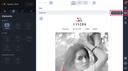
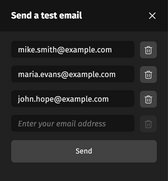
The “send a test email” pane is displayed. Enter the first email address to which you would like to send your test email automatically in the field provided.
A new field is then added, allowing you to add another email address, if required. There is a limit of 10 email recipients per test email.
Once you've entered all the recipients of your test email, click “Send”. A confirmation notification is displayed to inform you that the test email has been sent.
Test email sent from the Email Builder vs. from the email marketing tool
Test emails sent from the Email Builder are not able to interpret:
- Customization variables
- Display conditions
- Any other information related to your data.
We strongly recommend to send a test email from your email marketing software to validate the email. In fact, a test email sent from your email marketing software will interpret the variables and customizations, and is also the closest version to the final mailing.
Finally, all email marketing tools will add more or less code to the HTML file exported from the Email Builder, or even modify the code sent. This can have an impact on how your emails are rendered.