Note: The conditions for configuring Exchange Server from 2010 have not changed for higher versions. The procedure remains the same. With higher versions, of course, the UI for settings and customizations differs, so dialogs may look different than shown here.

Configuring Exchange Server from 2010
For Exchange Server 2010, Exchange WebService (EWS) must be enabled. This is automatically the case in a standard installation (however, not always in Exchange Online). See the notes on Exchange Impersonation below.
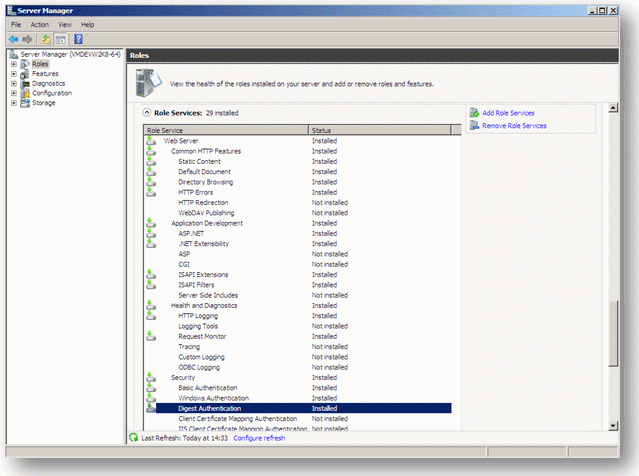
Server manager, role services, digest authentication
Note on problems when setting up new Exchange servers
It has been found that there may be problems with Exchange pairing during authentication after new (more recent) Exchange Servers have been set up (Server 2016). Digest authentication fails. It is not yet clear why Digest no longer works in this case.
First measure: Switch off Digest (important, so that it is no longer negotiated), and enable standard (basic) authentication instead.
Best practice: The EWS user should be entered as a full UPN (user principal name, user@domain.xyz), if it is to be expected that the mailboxes will be reached via another domain. The domain will then have to be entered in the groupware configuration. For an example company in France: EWS user "dcomaccess@icfr.company.fr, Domain: "company.fr", Groupware user: "Martina.Muster", Principal: Martina.Muster@company.fr.
There are problems with the second point in particular because the login names (and therefore the mailbox names) have also changed with the changeover to the new Exchange servers. However, this can be resolved relatively easily once authentication is working again.
Customizing the Windows Server configuration
Required role services on the Exchange host must be made available to Internet Information Server (IIS). In Server Manager, go to "Roles / Webserver (IIS) / Role Services". Under "Security", "Digest authentication" must be checked as installed. If it is missing, it needs to be installed.
Customizing ISS configuration
After digest authentication has been installed in the Server Manager, it needs to be activated for Exchange WebService:
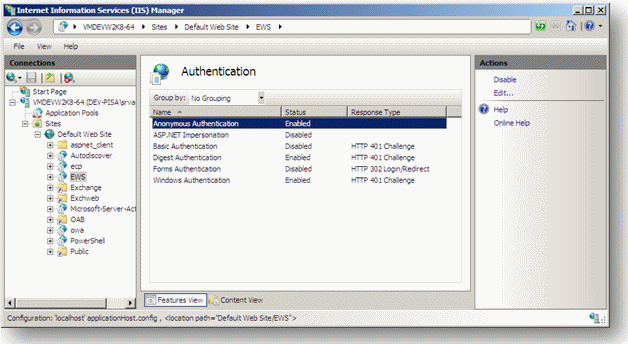
Activation of digest authentifikation for Exchange WebService
Note 1: Help recommends deactivating "Anonymous authentication" when digest authentication is activated. However, this proposal is service-neutral and must not be followed here. No contact to EWS can be established without anonymous authentication. It is therefore mandatory to activate anonymous as well as digest authentication.
Note 2: The selected authentication types affect the behavior of Outlook when it connects to the Exchange server. In addition to anonymous authentication and digest authentication, Windows authentication should be activated. If this is not done, Outlook requests log-in information in a separate step, which can be a burden for users.
If, contrary to expectations, Windows authentication is not available here, it must be installed beforehand in the same way as Digest authentication.
Customizing the Java environment (not required, but recommended)
The standard installation equips the Exchange server with a self-signed SSL certificate. This certificate is rejected by all standard web browsers when, for example, an attempt is made to download WSDL files:
"https://Name_Of_EWS_Host/ews/Services.wsdl"
The following option is offered:
a) If a thorough check confirmes that the certificate is secure, it can be added to the browser,
b) and it can be then saved as a file.
The latter is necessary to introduce the certificate to the Java environment. Add the certificate to the Java environment ("JRE") that is being used for the CRM server.
Here’s an example for Java 6 in Unix/Linux (in Windows, $JAVA_HOME is replaced by %JAVA_HOME%, and "/" is replaced by "\"):
Remarks
- The call syntax may vary between JREs. For more information, please refer to the JRE documentation.
- The host name of the Exchange server can be used as an ALIAS.
- The
Path_to_Cert_Fileparameter is the stored path name of the certificate. - The password remains
changeituntil it is changed. - The output of
keytoolis localized.
This step is not required if you have an SSL certificate confirmed by a recognized CA, and the JRE accepts this CA. This can be checked using keytool. Please refer to the keytool documentation for more information (part of the JRE-documentation).
If your web browser accepts the certificate without issuing a warning, you can assume that the JRE will accept the certificate as well.
If a self-signed SSL certificate is sufficient in your environment, you can force the EWS Connector to accept all certificates.
Exchange Online
With Exchange Online or an alternative Exchange environment hosted externally, the service provider always should possess a signed SSL certificate. Therefore, this step (import of the certificate) should rather be avoided. If there are problems with the certificate, please contact the service provider.
Exchange Impersonation
For accessing Exchange server environments hosted locally, or MS Exchange Online (MS 365), EWS impersonation is additionally integrated in in the CRM Groupware configuration.
Note: From JustRelate CRM 6.0 and later, this mechanism is already supported as an option. With version 6.2 and later, it is required.
On the Exchange Server side, EWS impersonation needs to be installed and configured. In local Exchange installations and with Office 365 Enterprise Plan E3, the impersonation account can be defined freely. In Office Small Business, it is automatically the administrator user.

Important note: Do not use spaces or special characters in names!
In the Groupware configuration dialog, an EWS user, the corresponding password, and the EWS version must be specified. See Configuring the Groupware Connector.
Information on Exchange Impersonation
See the corresponding Microsoft Libraray article for details.
Authenticating an EWS application using OAuth (Exchange Online as a part of MS 365)
Note: If you are using Exchange Online as a part of MS 365, several changes are required to be able to use the Exchange Connector with OAuth2 authentication. Your JustRelate project engineer will be happy to provide you with the corresponding guide [Exchange-Connector with OAuth2-Authentication D-21-244715].