On a fair, field representatives (FR) can register visitors and their wishes, interests and requirements in a structured way with a few clicks. With the help of an assistant, appointments can be created, contacts and appointments assigned to the event, as well as attendee statuses maintained in the event and in the appointment. This is important for sales and marketing to be able to track the fair visit.

Capturing fair reports
§ GDPR: When registering persons, you must observe the GDPR and data protection! See GDPR-compliant registration of persons.
Requirements
- The field representative has access to the event.
- There is a "Fair visit" appointment subtype.
- A fair report has the following properties:
- Registration type = once (alterable)
- The questionnaire usually doesn’t require a start or an end dialog because it is filled in by an internal staff member (FR).
- The questionnaire is released (according to the
PSA_QST_STA_QUEvariable).
- There are at least two attendee statuses in the event, "Entered in campaign" (initial status) and "Visit happened / Fair report completed".
- The fair report/s is/are assigned to the event.
Process
The field service executes the Write fair report function in the event header. The assistant opens.
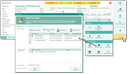
Questionnaire assistant of an event
- Select fair: The fair selection is preset with the event. The selection allows you to also open the assistant for, e.g., a person when customizing.
- Enter visitors: The FR adds the visitors by creating new contacts or selecting them. Sometimes, several staff members of a company visit a fair together. They all must have been added to the event and the appointment. Every new or selected contact is registered on the list and is assigned to the event with the initial attendee status. The first record in the list automatically receives the MP (main participant) flag. If required, a different attendee can be marked as the main participant.
§ GDPR: Note that providing the business card does not automatically allow the use of the email or mail address for newsletters or advertising.
- Scan business card: like Extras or Business card scanner (automatic duplicate check with duplicate assistant).
- Business card quick scan: Creates a contact and, if required, the company concerned, together with the most required data (name, status = imported) and saves the scanned business card as an image in the contact. The contacts imported in this way must be reworked by the back office. The automatic duplicate check operates in the background.

Admin: If you have low bandwidth at your site, the images may not always be transmitted to the server. By means of the PSA_CRD_SCN_COP_PIC_PTH variable, you can specify that the images are initially stored locally. If a client path is defined in the variable, the image is saved when the person is saved locally. The name of the file is the PSC_GID of the person. The image can then be imported subsequently (function CrdImp.copVisCrd).
- New person: Like creating a person contact
- Select person: The contact selection is initially empty (because several hundreds of persons could have been contacted). The contact selection also offers the possibility to capture a business card using New contact, allowing the FR to continue working immediately if the contact does not yet exist in the system.
- Creating and selecting an appointment
The list supports you with
- creating an appointment (preset by the system),
- finding the appointments that have already been created, e.g., by the back-office, prior to the fair in which the above attendees are involved (listed).
By means of a flag, the FR can select the new appointment (always the first record) or an appointment found by the system. The appointment name can be changed. The pattern for the name of the new appointment is "[Subtype [Keyword]", the appointment subtype and the appointment status are taken from the variables PSA_EVT_QST_WIZ_APM_*.
- Select report
The FR selects the report in the field (dropdown). The selector contains all active fair reports. The first default questionnaire is entered automatically (the first questionnaire in the event, or the first default questionnaire of the fair visit appointment subtype specified in the variable).
- Complete report
The Forward button
- checks whether all three fields are filled in. If this is not the case, a specific message stating the fields to be filled in is issued. The assistant remains open for corrections;
- adds the contact to the external contact list of the event, if not yet present there;
- sets at the contacts the initial attendee status, if still empty;
- creates a new appointment with the specified "fair visit" subtype. The appointment is preset with all required data, like with "follow ups". As a main participant, the contact marked in 2. is set;
- presents the fair report according to its property (modally or non-modally) for capturing (temporarily opened in the appointment).
After completing the report
- In the answer records, the case-, appointment-, and contact reference (main participant) are added.
- In the appointment, the questionnaire is registered in Save as.
- In the appointment, the report is generated.
- In the attendee list of the event, the attendee status is set to fair visit happened/fair report recorded for all visitors registered in the appointment, not only for the main participant in the answer record.
- A request prompts to finish the appointment (close appointment or not?).
- Yes: The appointment attendee statuses are set to "taken part", and the appointment status is set to "taken place". The standard attendee status query (variable
PSA_HDL_ACT_PRO_CON_STA=y) after changing the appointment is suppressed. - No: The appointment is presented for finalization.
- Yes: The appointment attendee statuses are set to "taken part", and the appointment status is set to "taken place". The standard attendee status query (variable