When importing an appointment from the Groupware, a document record with the archived status is created for every attached document and assigned to the appointment as an attachment. The check for document duplicates is deactivated. If changes were made to the content of an attached document within the Groupware, the modified document will not be checked in to the CRM (changes to a document’s content does not cause the appointment’s "Last Modified" to change).

Attachments
Transferring from the Groupware to JustRelate CRM
Transferring document changes to the CRM via the Outlook add-in
In the CRM Outlook add-in, the Synchronize attachments function is available for appointments and tasks. This allows an appointment organizer to, for example, add an agenda from within the Groupware, save the appointment locally and check it in to the CRM as a new document version using this function. (Please note that a non-organizer cannot synchronize to the CRM.) The current agenda is then automatically attached to the CRM appointment. Then, in the next cycle, the appointment attendees receive a notification about the change (automatic dispatch depending on the synchronization mode of the activity, and on the Groupware flag in the attendee list).
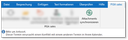
Synchronizing attachments
Transferring from the CRM to the Groupware
The Connector recognizes modifications to the CRM documents associated with an appointment as appointment updates. However, such updates do not automatically result in an update of the appointment and the changed document in the Groupware.
When sharing with Google, appointment attachments are stored in Google Drive.
Note: The synchronization job records changes to documents and synchronizes linked appointments if necessary, but only if it is allowed to do so (i.e., provided that the appointment is set to “Synchronize and send”). If “Synchronize and send” is not set as a fixed option, you can do this at any time by clicking on the small warning triangle at the top right of the appointment form. From then on, the job will recognize changes to the document, and synchronize the appointment including the assigned objects to the Groupware.
Use Cases
a) You have created an appointment without attendees, documents, or resources.
When saving, you are asked whether the appointment should be synchronized or not. Click “Yes”, and you will see the appointment in your Outlook.
b) Add two attendees and save.
You will be asked again, and after “Yes”, both attendees will receive invitations in Outlook.
c) Click on “Attachments...”, and there, for example, on the paper clip to select a file (e.g. a Word document), and add it to the appointment.
You will be asked again. After clicking “Yes”, the appointment in your Outlook will be updated with the document, and both attendees have received an update including the document as an attachment.
d) Open the document master data via the hyperlink from within the appointment. From the document form, you can edit the document and later save it from Word back to the CRM.
Here, nothing happens with the appointment for now because nothing triggers the synchronization. This is intentional in the CRM.
When the automatic synchronization job kicks in at some point, nothing will happen either because a new appointment defaults to “always ask”. Since the job cannot ask for confirmation, it won’t export the appointment.
Had you set the appointment to “Synchronize and send” at some point, the job would have recognized the document update and exported the appointment.
You can, however, easily do this at any time by clicking on the small warning triangle at the top right of the appointment form. From then on, after changing the document, the job will recognize this change, and synchronize the appointment with the Groupware.

Please keep in mind:
- Only changes to an appointment’s master data or direct contacts activate an interactive synchronization.
- Changes to linked objects do not result in immediate, interactive synchronization. This applies equally to contacts, resources and documents.
- The automatic synchronization job recognizes changed documents, and synchronizes linked appointments, provided that it is allowed to do so, i.e, if the appointment is set to “Synchronize and send”.