In the standard, the CRM delivers the cockpit elements described in this section. Every element must be selected and configured individually with respect to the result and its display options. For this, open the individual configuration dialogs and provide the settings as needed. The details of the elements are described in the sections below. The configuration is saved on a per-user basis.

Preconfigured cockpit elements
Speedometer charts
The "debit values" to be specified in the Yellow, Green, and Maximum fields for the definition of the colored areas are absolute values if not stated otherwise. These must refer to the timeframe specified in the query condition.
If a registered maximum debit value is exceeded, the speedometer chart always displays the real actual value as the final value.
Bar charts
The width and height of a bar chart must be stated in pixels for minimized and maximized display.
Accumulated values
If no field whose value is to be cumulated is selected in the configuration dialogs, the system always automatically outputs the number as the result.
Updating the cockpit pages
After changes to the configuration of a graphic element (speedometer chart and bar chart), the display can be refreshed using the "load" function (from the function bar or the context menu). After configuring a new cockpit element, the cockpit needs to be reopened.
Optional selection of display parameters in the elements
There are cockpit elements with a pull-down menu.
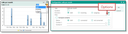
Option for the selection menu of a cockpit element
In the configuration, you can choose a parameter as an option (radio button). This allows you to predefine a value (incoming call, outgoing call, or both) which is then selectable in the cockpit element.
This way, the number of elements can be reduced, because now you can display various values using a quickfilter (pull-down menu) in the element.