
This is an overview of the most essential functions the Web Builder has to offer for content creators and editors. For more detailed information on how the Web Builder works and how you can make the most of it, check out the Editor’s guide.
Creating a landing page
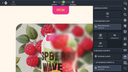
You can create a landing page from within a project folder by clicking the corresponding item of the “Create new” menu. This will first display a dialog window where you can enter a descriptive name for your new landing page, and then automatically open the Web Builder interface.
Once opened, you are presented with a sample landing page you can use as a starting point. It’s ready to be customized and edited within a dedicated working copy, automatically named after your landing page. In this example, it’s called “About Mona Lisa”. This working copy ensures that your changes remain separate from the published content until you're ready to go live.
You can easily access and manage your working copies through the corresponding sidebar panel located on the right side of the Web Builder. The sidebar features around a dozen panels, each one hosting a specialized set of tools for managing, editing, and organizing your site content and structure efficiently, giving you complete control over your website development process.
In addition to the sidebar, there is the page menu at the top right that lets you perform actions related to the current page, such as duplicating, copying or moving it, or creating subpages.
Let’s take a closer look at how an individual page can be composed.
Organizing and editing page content
On websites built and maintained with JustRelate Web Builder, most pages consist of a content area at the center and one or more layout areas reserved to navigations and the footer.
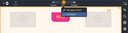
Using the editing mode switch at the top, you can switch between content and layout editing mode, but also select the preview or changes mode for checking the result of your efforts.
You can edit the content of your web pages in place by inserting widgets using the “Widgets” sidebar, or by clicking the plus button on the top or bottom border of an existing widget.
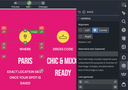
Widgets are special-purpose content containers in the sense that they are designed for handling a specific type of content or structure, e.g., headlines, text blocks, images, buttons, but also columns and even layout elements such as navigations.
Every widget has a handle at the top right, allowing you to reposition them using drag & drop. Clicking a widget’s handle opens its menu for editing the widget’s properties, duplicating and deleting it, and a few things more.
To add text to a text or headline widget, simply click inside of it and start typing. If you mark a piece of text in a text widget, a toolbar appears that lets you format the selection, or create a link. Clicking inside an image widget opens the Content Browser for finding or uploading and selecting the image the widget should display.
Ready to publish your changes?
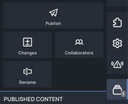
If you are satisfied with your results, and your content is ready to be presented to the public, you can simply push the “Publish” button on the top bar or on the “Working copies” sidebar. This will override those parts of the published content that you changed in the working copy, and also cause the latter to be removed.
Remember that you can always create a new working copy if you’ve overlooked something, i.e., need to add or correct a piece of text, a link, an image or the like. Also, via the “History” sidebar, you can restore previously published content partially or completely in case something went wrong.
Last but not least…
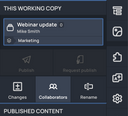
Working copy subject to a workflow
The Web Builder supports collaboration between multiple editors in individual working copies. As an owner of a working copy, you can invite members of your team to participate in working on your website content as viewers, editors, or co-owners of the working copy. With the optional “workflows” feature, administrators can additionally define which teams are allowed to make changes in which areas of the website and which teams are permitted to review and publish the corresponding working copies.
Multiple websites and languages, as well as data-driven portals, are also supported, allowing you to easily build and maintain feature-rich websites that are tailored precisely to your target audiences.