The goal of this tutorial is to explain how to check your special fonts are correctly hosted. If your fonts are incorrectly hosted, specific errors will appear in the Email Builder’s quality control. We will explain how to identify them.

Checking the settings of special fonts

Fonts must be hosted in .woff format on an HTTPS server. On this server, CORS rights must be activated and the Content-Type must be filled in. Once the font has been integrated into the email, it is in the CSS that the font is declared.
Glossary
Here are a few terms you need to know to fully understand the hosting of special fonts.
- HTTPS server: HTTPS is a protocol used to secure exchanges between a server and a client.
- .woff format: This is a compressed font format for use on websites, ideal for use in emails. .woff2 is also accepted.
- CORS (Cross-Origin Resource Sharing) rights: Rights applied to the server allowing readers to access the font. CORS rights are applied by adding an HTTP header on the server.
- Content-Type: Header used to declare the type of file being hosted (in this case, for example, a font file). This Content-Type is made up of a MIME Type and other information.
Errors reported by quality control
- The Content-Type header is invalid: In this case, the CONTENT-TYPE value is incorrect. As a reminder, this must be a "font" or "woff" type.
- The CORS HTTP header is missing: CORS rights have not been applied on the server.
- Non-secure protocol: The server is not secure and does not generate an https link.
Applying and filling in CORS & CONTENT-TYPE rights
The CORS rights and Content-Type are actually HTTP headers to be entered at server level. Here is a link to the process to be followed depending on the type of server: https://enable-cors.org/server.html.
Here the aim is to apply a specific comment to the file (or folder) where the font is located, so that CORS and Content-Type rights can be applied.
Example:
<IfModule mod_headers.c>
  Header set Access-Control-Allow-Origin "*"
</IfModule>
Verifying the font settings via the hosting link
Step 1: Copy and paste the font link into your browser.

Step 2: Open the inspector.
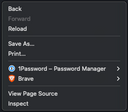
Step 3: Go to the Network > All tab.

Step 4: Go to the search bar where the URL is and press "Enter".
The font downloads and a line of information about it appears in the inspector.

Step 5: Click on this new information line, and several pieces of information are displayed:
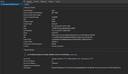
Step 6: The information of interest is contained in the HEADERS :

Step 7: Check the presence of CORS rights: look for the heading "Access-Control-Allow-Origin:" if this is followed by an asterisk, the rights have been applied.

Step 8: Check the CONTENT-TYPE value: find the "CONTENT-TYPE" heading. As a reminder, the associated value must be font/woff.

You are now able to understand and check whether your special fonts are correctly hosted. If you have any questions, don't hesitate to contact support.