
Clearing the cache can help resolve possible display issues and therefore ensure you see the latest up-to-date content. Caches contain old or corrupted versions of website files (images, CSS, JavaScript).
Clearing the cache in Google Chrome
Why clear the cache?
If a website does not display correctly or encounters bugs, clearing the cache allows the most recent files to be loaded.
Finally, clearing the cache also helps speed up the display of content, or even frees up storage space.
How to clear the cache
Step 1: Open the development console
Go to app.justrelate.com, launch the Email Builder via an email of your choice, and open the development console.
To open the Chrome console, use the shortcut Command+Option+C (Mac) or Control+Shift+C (Windows, Linux, Chrome OS).

Step 2: Go to the application tab
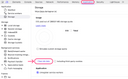
In this console tab, go to the “Application > Clear storage” section (see screenshot above), and click on the ”Clear site data” button in the right part of the console (under the circular diagram).
Step 3: Refresh your page
All data relating to the visited website will be deleted, freeing up space and resources to streamline its use.

The connection information will be deleted, and it will be necessary to reconnect to the platform.