Radius search

In the contact forms of companies, persons and competitors, the Radius search function is offered. Here, JustRelate CRM integrates the radius search from the current location (main address) to selected contacts. It opens a list in which a contact filter must be selected (e.g., Sales prospect), and a maximum distance can be entered. The contacts determined by the filter are compared with the source contact and then included in the result list if the distance is shorter than specified. The CRM server calculates the distances (as the crow flies) on the basis of longitude and latitude. This geo-data is determined during an export to a map service and stored invisibly at the CRM address.

The contacts found in the vicinity can be passed to Google Maps individually, or as a whole to a different map ser­vice. Here, routes to the different locations can be planned. 
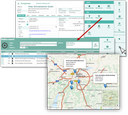
Radius search with JustRelate CRM on the MapQuest base map 

  • Specify a contact filter and enter the maximum Distance in kilometers.
  • Click Search.
  • In the result list, mark the contacts you would like to see in the map.
  • Click the Show in map function.
    Decide whether you want to have the information for the hits displayed automatically as a speech bubble in the map. If you choose No, the speech bubbles will only be displayed in the map after clicking them (this may improve the overview).
  • If required, mark the contacts whose company form you would like to open and click the Show in form function.

You can also open the radius search directly from the CRM top menu (Extras), but without a preselected origin. You can select the desired contact manually by clicking on Origin.

Additional flexibility can be achieved in the radius search by selecting a different origin. In addition to contacts, you can select the location of an event or appointment, as well as the location of an object or service object. The search can also be opened directly from these forms. You can also use the coordinates of a document as the origin for the proximity search.  

Radius search for objects

All employees with the “Objects (Master)” profile can determine the locations of the CRM objects using the radius search. Please open the radius search (objects) from the form or directly from the top menu (Extras). The function corresponds exactly to the search in the contacts, but searches the database of the objects and therefore also requires selecting an object filter.

Radius search for service objects

For employees with a “Service (master)” profile, the radius search is available for the locations of the service objects, e.g., to find nearby machines with an upcoming maintenance appointment. Please open the radius search from the service objects form or directly from the top menu (Extras). The service objects found can either be shown on a map or displayed together in a form. In this context, please also see Showing service objects on a map.