Opening the Cockpit:
- Menu Sales/Cockpit, [Ctrl+O], or
- from the context menu in the Entry portal.
Configuration:
- Configuration function bar

Opening the Cockpit:
Configuration:
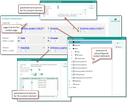
Individual configuration of the own cockpit
The functions below are available in the context menu of a cockpit element:
The Configure function on the cockpit function bar opens the configuration dialog. Here, the elements to be displayed can be selected, sized and assigned a title that will then be displayed as the cockpit elements’ respective title.
The structured cockpit element selection, arranged by module (Activities, Sales, Marketing etc.), offers a good overview.
Note: The titles of the elements need to be created explicitly in the language of the user concerned.
After having configured the cockpit according to your requirements, it needs to be generated again from the configuration mask using the Open new cockpit function.
A maximum of 9 elements can be placed on the cockpit. For every element, the following data needs to be provided:
Selection of a preconfigured cockpit element. If an element was selected, it no longer appears in the selection list of the current cockpit tableau.
Selection of the element size in a 3 x 3 grid.
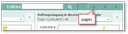
Opening several cockpit boards
To be able to place numerous cockpit elements, several cockpit boards can be created. They can be opened using the buttons at the top right. Open a new cockpit board to configure further elements.
You can use the Page title field in the cockpit configuration to give cockpit pages a title. The name then appears next to the "Cockpit" title, e.g. "Cockpit Sales".

Admin: A customizer can use the PSA_CCP_PAG_CNT variable to adjust the number of cockpit pages per standard and company cockpit. Changes to this variable are applied globally. The variable must not be changed on a per-user basis.
Important note: The variable may only have positive values in both parameters. Changes affect all users at the same time and only in connection with customizing so that the correct cockpit dialogs are available.
A message from within the cockpit does not refer to any record and serves communication purposes only. The recipient cannot open the cockpit via the message.