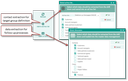
Drill-down analysis

You can build an analysis and pass the results from the fact table to follow-up processes without much post-processing. For example, you can transfer contacts from the drill-down result for target group definitions to an ad-hoc list. You can also pass the data directly to the Trend Center as a data source. Of course, you can also transfer data from the drill-down result to the suitable master forms for follow-up processes.

For an analysis, proceed as follows:

Select an existing drill-down (path)

To do this, you can adjust the path elements (dimensions) via selection menus, or create a new path.

Select or adapt path elements (dimensions)

This allows you to create your own new path, which is put together automatically.

With the Commercial agent, Technical agent and Acc. manager path elements, you can additionally restrict to My or My company.

Note: Path elements in the lower dimension area may only become visible as you scroll down.

Selecting columns (using the flag)

Select the columns by means of which you want to compress.

Time-based compression

Enter the period of time into exactly one date field, e.g., in Order on. In the Date field of the results table, the temporal compression is displayed in the form "year, quarter.year, month.year. Example: Order period = 2 years. Temporal compression = month. Result: 24 records per customer (12 each for year 1 and year 2).

Counting the records

Using the corresponding option buttons, you can count the number of compressed records (cases, customers, products) in the selected dimension. The number is displayed in the Number field of the table of facts.

Choosing the fields for presenting the results in the fact table

The field selection is stored in the path. If a path with selected fields is loaded, the view switches auto­matically.

In the definition phase, it is recommended to use the All fields view.

Use Select fields for the presentation of results. For selecting the fields, an assistant is available. Grayed-out fields in the field tree on the left will be completely empty in the results table for the current compression (due to the compression or if the data has not been maintained). The fields can still be included in the fact table as the result may change later on.

Save

This saves the new or changed path for reusing it or displaying it in the cockpit.

Info

Admin: If required, multiple selection can be installed for selected drill-down definition fields via the variable PSA_DRL_DWN_MUL_SEL (only via the selection menu, not via the selection dialog). This enables not only the restriction to offers, for example, but also to offers and business opportunities. By default, the property is set for the process, process status and type.

Configuration of cockpit elements with drill-down as a data source

The field definition of a drill-down path is automatically added to the configuration of the drill-down list or graphic. Due to this, the cockpit element can be fully configured with one click. The field selection can be changed later.

Passing contacts to an ad-hoc list

Using the Add to ad hoc list function, contacts for target group definitions can be extracted from the drill-down results and stored in a new or an existing ad-hoc list. The function queries whether the customers or selected contact components should be transferred from the result.

Note: The "Add to ad hoc list" function is also available in the sales-/service process overviews. The prin­ciple is the same. However, you can extract and pass further contact roles from the process. If you don’t select an ad-hoc list, the selected contacts are loaded into the master data management.

Open Trend center (transfer to Trend center)

The Open Trend center function transfers the data to the Trend Center where drill-downs serve as a data source for calculating trends and subsequently filtering values and trends.

See also: Trend Center

Open in form

Using this function, data can be passed from the drill-down results to the master data management for fol­low-up processes. The function queries the target dimension and loads the data into the appropriate master data forms.

  • Contacts (customern or the selected contact components) are distributed by person or company.
  • Cases are distributed to the case types (business opportunity, quote, order, service quote, service order, etc.)
  • For products, the system determines the neutral catalog products and opens them in the neutral item management.

Data extraction for ad-hoc lists or for follow-up processes

Note: Transferring the data only makes sense if the selected dimension or contact component is complete, and no fields are empty due to compressed records. In the assistants, the system grays out checkboxes  so that they can no longer be set if columns in the drill-down fact table do not contain any data.

General notes

  • If a path element is a structured object, an industry for example, a superordinate node in the structure can be selected via the selection button as well.
  • The search path or order is created in the structure browser. By means of the hyperlink at the node, the list displaying result quantity of the node can be accessed.
  • When a node is deleted, the search path is rebuilt according to the selections at the top.
  • The search can take place automatically or manually. For large numbers of hits in the fact table, searching manually is recommended as in this case the search is not reloaded every time the search path is altered.
Info

Admin: The default for the update method in the search field (manually, automatically) can be controlled via the variable PSA_DRL_DWN_AUT_FET (ON = automatically, OF = manually, LST = last setting). If the automatic update consumes too much time and resources due to the amount of data to be analyzed, you should set OFF.

  • The respective objects can be accessed from the fact table via a hyperlink.

Access

Access to search paths can be defined via the access dialog (small lock). Here you can manage the access mode, if other users should use the search paths to configure a cockpit element, for instance.

Drill down job

The name of the job that updates the Drill down data is "Drill down" (PSA_DRL_DWN). It periodically ensures that a Drill down is always is based on current data. Alternatively you can start the job before a Drill down using the Refresh function.

Data access requirements

When building the data source, the mode of access to the cases is copied to the Drill down result records. For this reason, you can only evaluate along those cases to which you have at least read access. The records to which you don’t have read access (*****) are not displayed in the result list. When data is compacted, records marked with a star are ignored.

Note: If you do not use quoting (JustRelate CRM product database for configuring the scope of sup­ply), no analyses about products are possible. The Drill down functionality then limits itself to the “project” and “customer” dimensions.