Using the AI Assistants

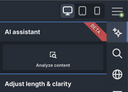
The Web Builder includes two AI assistants, one simply called “AI assistant” and another called “Coworker”. While the former presents itself as a collection of text adjustment and translation tools, the latter, “Coworker”, is for working creatively with all kinds of page content or the page structure.

In addition, there is a “Generate page” menu item in the upper-right corner of the main menu, which you can use to have the AI assistant create a webpage according to your specifications.

The “AI assistant” sidebar

The "AI assistant" sidebar of the Web Builder offers a wide range of tools for analyzing the text content of the current page and adjusting it to meet your requirements as needed. This allows you to optimize the language, tone, and structure of your web pages efficiently and without any external tools.

With all functions except “Analyze content”, the web page is updated step by step in the Web Builder, and you can watch the assistant carry out its task. This allows you to follow the process at any time.

Any changes the assistant makes can be undone using the "Revert to previous version" button at the bottom of the sidebar, should the result not meet your expectations.

Attention

If the "AI assistant" sidebar is missing or disabled in your Web Builder, please contact support if you would like to have the AI assistant enabled.

Analyze content

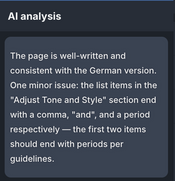
The analyze function examines the current web page for linguistic and tonal consistency, then provides concrete suggestions for improvement.

This gives you a quick overview of whether the language, tone, and structure of the page are consistent and appropriate for your target audience – and where adjustments may be needed.

Adjust length & clarity

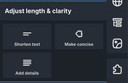
This group of AI functions allows you to shorten, tighten, or expand the text on a given web page. Depending on your goal and target audience, you can achieve the optimal text length and density for your content.

  • Shorten text reduces the length of the text while retaining the most important information. This is ideal when content needs to be streamlined without losing its impact.
  • Make concise makes the message clearer and more direct while reducing redundancy. This is particularly useful when text feels too wordy or the core message is not immediately apparent.
  • Add details attempts to enrich the text with additional information from the context, adding greater depth and a higher level of detail.

Adjust tone & style

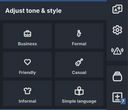
Whether you want the tone to be "business", "formal", or "informal", these AI assistant options allow you to specifically control the writing style of the displayed web page and adapt it to different communication styles. You can

  • tailor the tone of your web page to your target audience as needed,
  • make your message more impactful and persuasive, and
  • ensure consistency across all your communications.

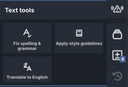
Text tools

With these AI assistant tools, you have the following options for revising and refining your texts in a targeted manner:

  • Fix spelling & grammar automatically corrects spelling, grammar, and punctuation errors on the web page in the language configured for it. Flawless spelling and grammar are essential for conveying the intended information clearly, without disrupting the reading experience through errors or undermining the credibility of the content.
  • Apply style guidelines adjusts the page text in accordance with the general presets defined in the Home settings. This ensures that all pages of your website follow a consistent brand style.
  • Translate to… automatically translates the web page text into the language configured in the page properties. This makes it significantly easier to create and maintain multi-language content.

Once the translation is complete, you can of course further refine the translated content as needed, for example, by adjusting the tone and style, the level of detail, or specific phrasing.

Coworker

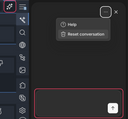
The Coworker can be opened via the “stars” button next to the main menu, appearing as a separate sidebar. At the bottom of this sidebar is an input field where you can enter free-text instructions for editing the content or technical aspects of the web page, similar to what you may know from other text-based AI tools.

This free input mode offers maximum flexibility, as you can formulate tasks that go beyond the predefined functions of the AI assistant. Examples of possible instructions:

  • Remove all links that do not contain linked text.
  • Enrich the text with real-life examples where appropriate.
  • Convert the body text into bullet points where appropriate.
  • Add images to the page that fit the content.
  • Insert a brief summary of the page at the top.

In the Coworker’s “…” menu, there is a "Help" item you can use to request further examples of instructions, as well as an item for resetting the chat. The latter removes the saved context of all previous chats.

After submitting your instructions using the arrow button at the bottom, the assistant edits the current page directly and then offers the following actions at the top:

Accept new version anchors the changes made by Coworker, as well as any changes you have made yourself afterward, into the page. If you later undo further changes, the anchored ones remain in place.

Back to previous version undoes all changes up to the point where Coworker was first used or previous changes were anchored.

Generating a page

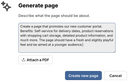
Using "Generate page" from the main menu at the top right, you can have the AI assistant create complete, new web pages based on your individual specifications. The assistant creates both the structure and the content of the page based on the information you provide.

The more context you give the assistant, the more accurate the result will be. Useful details to include are:

  • What use case or product is involved, and in which industry?
  • Which target audience should be addressed, and how (tone)?
  • What structure (sections, columns) should the new page have?
  • What actions should visitors be able to take on the page (e.g., sign up)?

If you already have a descriptive draft of the page, you can upload it as a PDF file. The assistant will then incorporate the information contained in it into the page to be generated.