
From the Designer, you can copy a set of elements and paste them into another area of your email or another email.
How to copy, paste or duplicate a set of elements?
Duplicate and copy, cut, paste,... how does it work?
If you regularly design emails with many repetitive elements, you may already be familiar with the “Duplicate” feature. This allows you to instantly copy and paste an element, group or section immediately following the selected element.
Copy/paste” (or cut/paste) features are an alternative way of positioning content at a specific point in the email structure.
Where to copy or paste content?
With this feature, you can copy and paste the relevant element (or group of elements) just about anywhere:
- to another level (higher or lower) in the group you're editing;
- in another section of the email you're designing (for example, to repeat the header menu in the footer);
- in another email.

As an exception, for technical reasons of compatibility, the Email Builder does not allow you to use buttons in a background element, or a background within a background. This means you can't paste a button (or an element containing a button). If you attempt to copy/paste such an element, you'll see the following notification appear at the top of your screen: “The contents of the clipboard cannot be pasted here”.
Pasting a copied element
From your composition, select the element to be copied (the border is displayed as a dotted line), click on the “gear wheel” icon and choose :
- Duplicate item (Copy directly after)
- Copy item (or cut item)
- Paste item
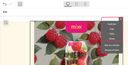
Then select the element that precedes where you want to position the content. Click the “gear wheel” icon and choose “Paste”.
If you perform this “paste” action in a group or section with several columns and no element is selected, your element is positioned in the first column.
Keyboard shortcuts to duplicate, copy, cut, or paste
You can use the following shortcuts:
- Copy: CTRL + C (or Cmd ⌘ + C on Mac)
- Cut: CTRL + X (or Cmd ⌘ + X on Mac)
- Paste: CTRL + V (or Cmd ⌘ + V on Mac)
- Duplicate: CTRL + D (or Cmd ⌘ + D on Mac)
When to use copy and paste and when to use the modules?
Copy and paste is not intended to replace modules, but rather supplement them. Copy & paste will allow you to test out the creation and design of an item in several different contexts. You then have the option to “freeze” it as a module if you like the results of the test.
A few ideas to use this feature
- When designing an email, copy or cut & paste will allow you to more easily “reassemble” a set of items in another zone or in another location in a block without having to recreate the set (and eliminate the risk of error that comes with that recreation).
- If you are working on a new button, you can more quickly add it using copy & paste within the same email and/or in relevant emails and modules. Once again, this procedure is much quicker and without the risk of error.
- Lastly, copy & paste can significantly accelerate the process of creating a new email by opening two windows or two tabs of the interface and by transferring from one to another.