SSO via OpenID Connect

JustRelate Cloud Platform

The JustRelate Cloud Platform provides centralized Identity and Access Management (IAM) for all cloud applications. IAM supports authentication via upstream OpenID Connect (OIDC) Identity Providers (IdPs).

Once configured, single sign-on (SSO) works across the entire platform, including applications such as:

  • Web Builder
  • Email Builder
  • Further cloud-based applications enabled for your organization

Users authenticate once and gain seamless access to all supported services.
1. Architecture overview

On the JustRelate platform, IAM acts as an OIDC relying party (client) toward your corporate identity provider.

Authentication flow overview

  1. A user attempts to access a cloud-based application (e.g., Web Builder or Email Builder).
  2. The platform redirects the user to the configured upstream OIDC Identity Provider.
  3. The user authenticates with the corporate IdP.
  4. The IdP returns an ID token (and optionally an access token) to IAM.
  5. IAM validates the token and establishes a platform-wide session.
  6. The user gains access to all permitted cloud applications without additional login prompts.

2. Getting started

Choose an OIDC–compliant identity provider, and make sure that you have administrative access to configure a new OIDC client.

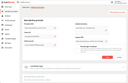
In your JustRelate Console, configure the IdP to use, in particular the provider URL, client ID, and client secret.

The hosted domains of an IdP restrict the email domains for which it is available for authenticating users. Conversely, if no hosted domains are specified, users can log in via this IdP with an email address from any domain the IdP doesn't reject.

If you set up multiple custom IdPs, the one with a hosted domain matching the user’s email domain takes precedence over an IdP for which no hosted domains have been specified.

Note that IAM as an IdP – JustRelate login – is always available for logging in, should none of the configured custom IdPs fit due to their hosted domain restrictions.

If you specify for the IAM IdP or a custom IdP that it shall serve as a primary sign-in method, it becomes a preferred one for authenticating the user, unless their email domain exclusively matches a domain configured for a non-primary IdP. There can be more than one primary IdP.

If there is exactly one primary IdP that can be used for authenticating the user, they will be forwarded there even if they haven’t yet entered their email address, meaning that, in this case, the corresponding IAM form will not be displayed.

Specify as the logout URL the one the users should be returned to after logging out.

The authentication callback URL is fixed: https://iam.justrelate.com/oauth_callback

3. OIDC configuration parameters

When registering the JustRelate cloud platform as an OIDC client in your identity provider, configure the following:

Required settings

SettingDescription
Grant typeAuthorization code
Redirect URIhttps://iam.justrelate.com/oauth_callback
Response typecode
Scopesopenid, profile, email

Make sure to provide the following claims:

  • email,
  • email_verified,
  • at least one of: name, given_name, family_name,
  • optionally: picture_url

4. Security requirements

  • HTTPS must be enforced.
  • Tokens must be signed (RS256 recommended).
  • Clock skew between systems should not exceed 60 seconds.
  • Token lifetime should align with your organization’s security policies.

5. Multi-application SSO across JustRelate Cloud Platform

After successful configuration:

  • Users authenticate once via your corporate IdP.
  • A centralized IAM session is established.
  • SSO applies to:
    • Web Builder
    • Email Builder
    • Future JustRelate Cloud Platform services enabled for your organization

No additional login is required when navigating between applications.

6. Logout configuration

If there are provider-specific requirements or settings you wish to discuss (e.g., logout matters), don’t hesitate to contact JustRelate support.

7. Testing & validation

Before going live:

  1. Configure OIDC in a staging environment.
  2. Validate:
    • Successful login
    • Correct user provisioning
    • Cross-application SSO
  3. Test token expiration behavior.
  4. Validate logout flow.

For integration guidance and environment-specific details, please contact JustRelate Support.