Managing Teams

Overview

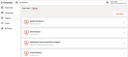
After selecting “Teams” from the sidebar, the overview list of the teams already present in your account is displayed.

To add a team, click “Add team” at the top right. Then, specify its name and click “Save”. The new team will be added to the overview list.

To add or remove members, or specify a team’s permissions, click its entry on the overview page. This opens the team’s details page for applying the desired changes.

Info

There’s a built-in team named “All users”. It automatically includes each and every user that has been added to the JustRelate account concerned.

Team permissions

Every team can be granted account-wide and instance-wide permissions.

Account permissions

Manage usersThe team members are permitted to add and delete users, change their team membership, add and delete teams, and change their permissions.
Manage configurationThe team members are permitted to change account settings like URLs or publish hooks.

Instance permissions (Web Builder)

Manage built-in visibility categoriesThe team members are permitted to enable and disable the visibility categories for public and non-public website access.

Manage custom visibility categories

The members of teams with this permission may set up and delete custom visibility categories for websites.
Manage workflowsAllows the team members to set up workflows.
Read all contentThe team members can access all content, regardless of its visibility. At least one user should have this permission via a team in case visibility categories have been misconfigured.
Access all working copiesAllows the team members to view all working copies, become their owner, edit the content in them, and publish them.
Publish working copiesGrants the team members permission to publish working copies they have access to, without the need to become their owner, and regardless of their workflow.

Instance permissions (Automations)

Access AutomationsEnables the team members to access Automations for marketing automation purposes, e.g. for managing mailings.

Instance permissions (Planning Board)

Planning Board access
Allows the team members to access the Planning Board for managing service assignments, time recording, and reports.
Read all dataThe team members are permitted to view restricted content across all groups.
Write all dataThe team members are permitted to modify content across all groups.

In the “Members” section of a team details page, you can also make users members of the team, as well as remove members from it. Every member of a team is automatically granted all the team’s permissions. To be able to add a user to a team, the user must first have been added to the account via the “Users” section.